
Cosmic Me

Help, for your journey through the sky

Your birthday.
Your universe.

Discover your age on other worlds, your journey through space and the sky that connects it all.

Find your way around

Four tabs. One personal universe.

Download Cosmic Me

Free to start26 app languagesCore astronomy offlineNo account
  • A different age on every worldSee your orbital birthdays and your weight under other skies.
  • The sky on your birthdayExplore your Moon, constellation and planets.
  • Your journey through spaceFollow cosmic mileage and the journey of light.
  • A sky worth coming back toCurrent sky views, celestial events and your observing log.

Start with your birthday

A few details connect the sky to your own life.

Your first visit

Your first visit in the current English app

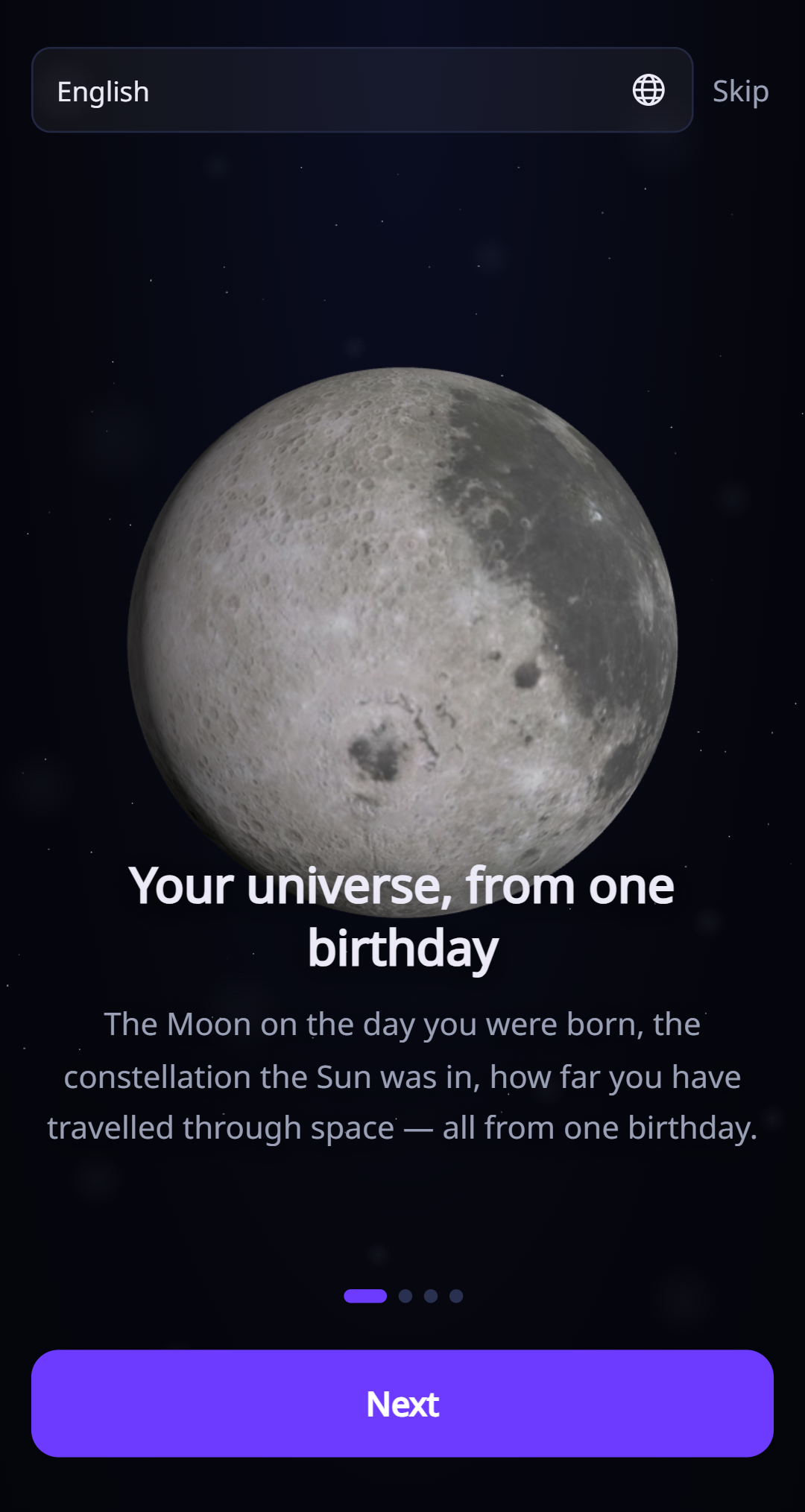
Choose a language, swipe through the introduction and create your profile. The app starts with your system language when it is supported.

  1. Enter your name and birthday. Your name is optional.
  2. Add a birth time if you know it. When it is left blank, calculations use noon in the device’s local time zone.
  3. Enter your weight to see how gravity changes your weight on other worlds.
  4. Allow location if you want sky information for your area. Without a saved location, the app uses Seoul.
  5. Use the four tabs at the bottom to move between Me, Sky, Log and Settings.
Me

Your journey through space, and a fresh perspective on time.

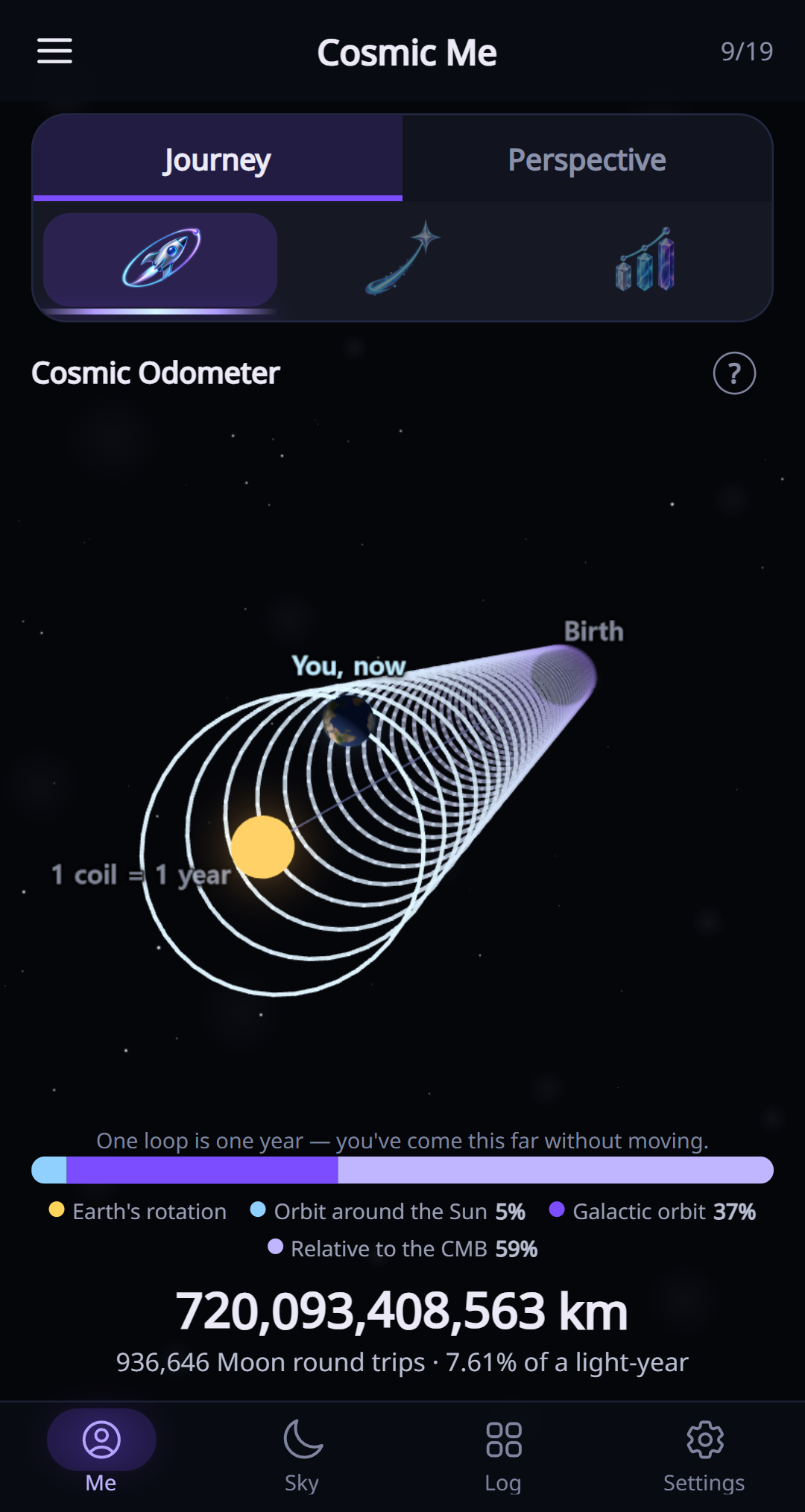
Cosmic Odometer

Cosmic Odometer in the current English app

Earth has been moving through space for your entire life. This counter estimates the distance you have travelled with it.

  1. Open Me → Journey and choose Cosmic Odometer.
  2. Read the changing total and the breakdown beneath the scene.
  3. Open the information button for the calculation explanation.

Light’s Journey

Light’s Journey in the current English app

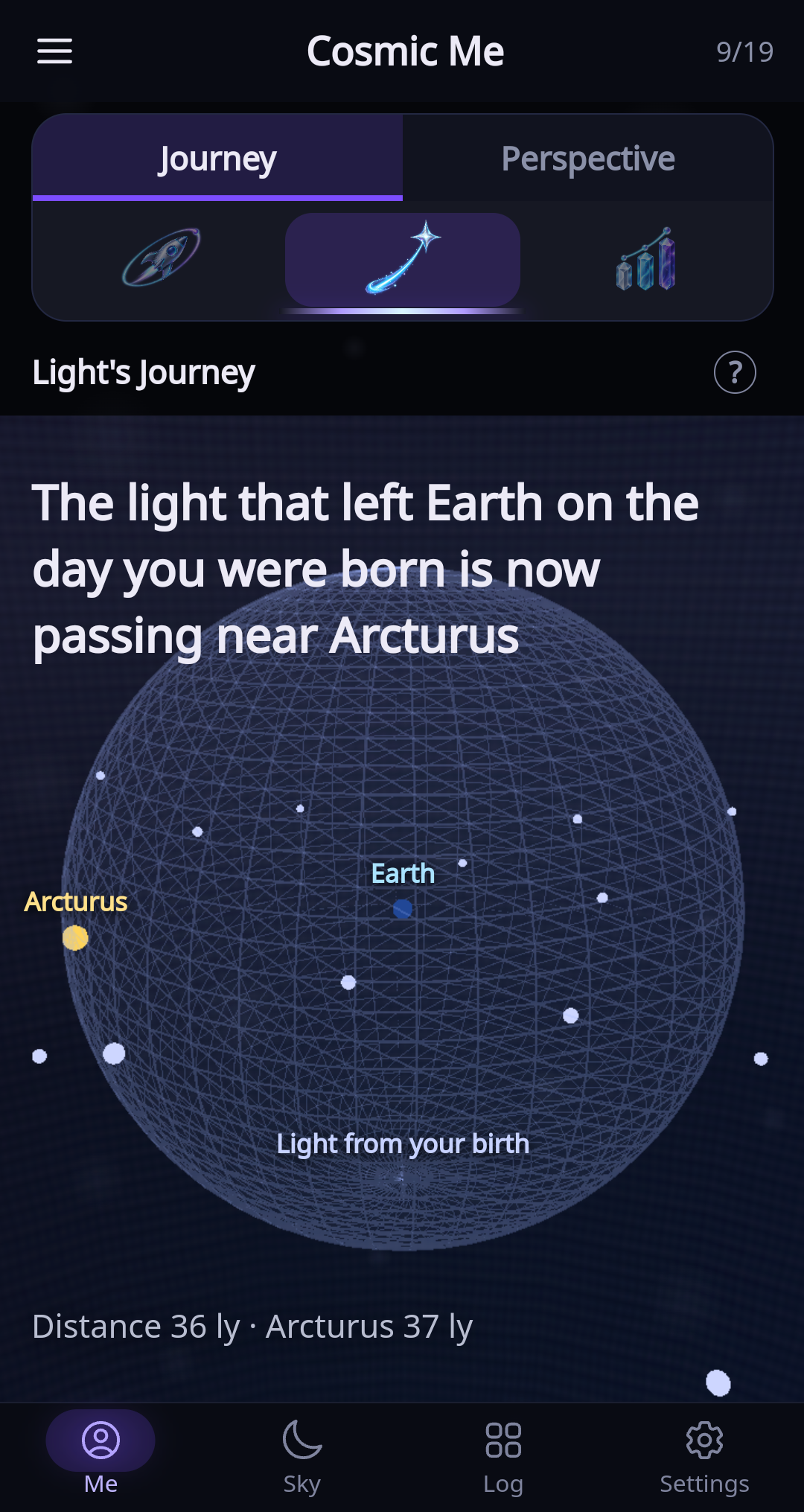
Imagine a signal leaving Earth when you were born. This view shows how far that light could have travelled.

  1. Choose Light’s Journey in Me → Journey.
  2. Read the distance and explore the destinations along the way.
  3. Use the information button to learn what the journey represents.

You so far

You so far in the current English app

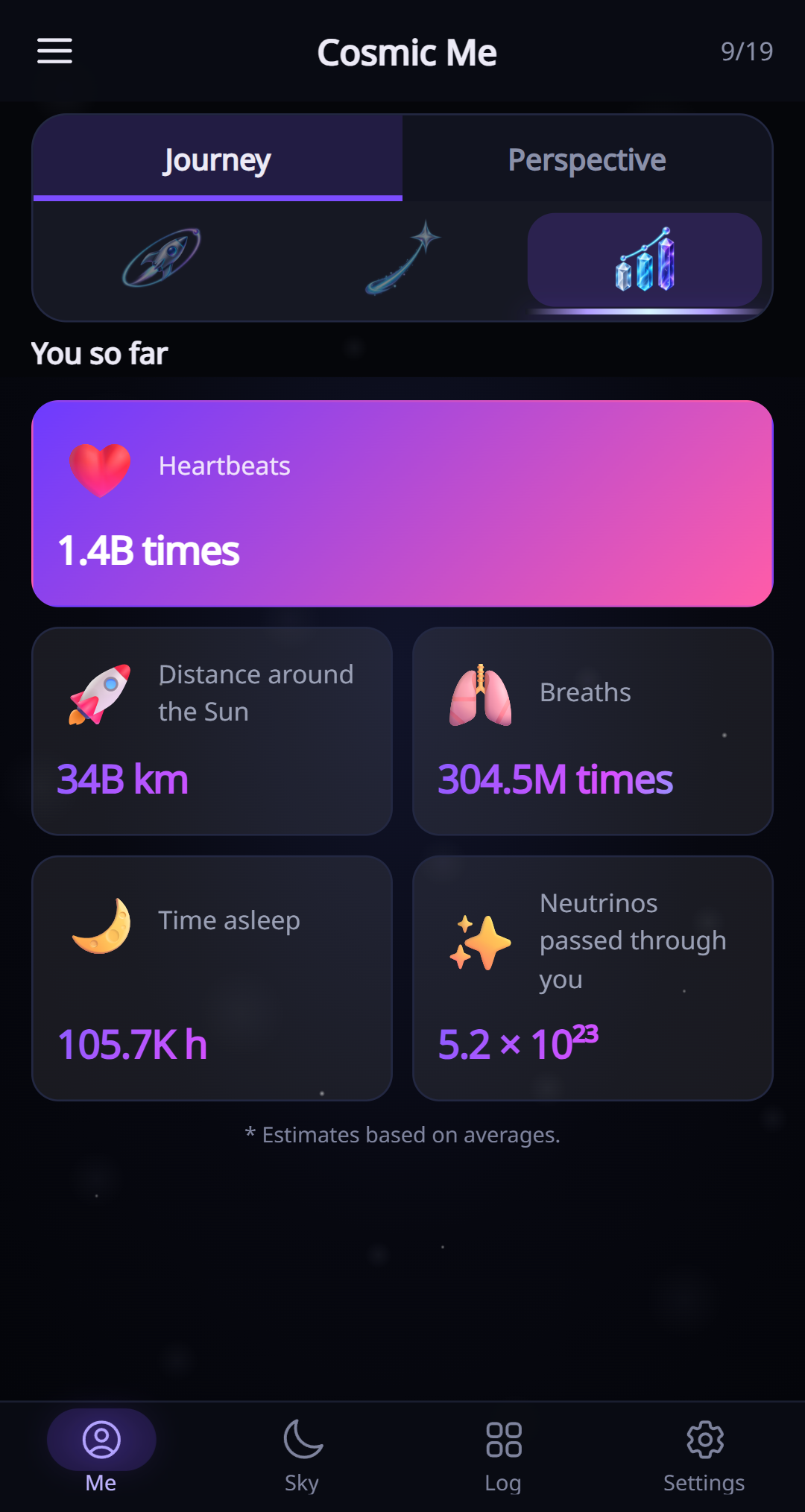
Everyday moments become surprisingly large numbers over a lifetime. These cards estimate your heartbeats, breaths, sleep and other totals.

  1. Choose You so far in Me → Journey.
  2. Scroll to see all of the cards and the estimate note beneath them.

Ages by body

Ages by body in the current English app

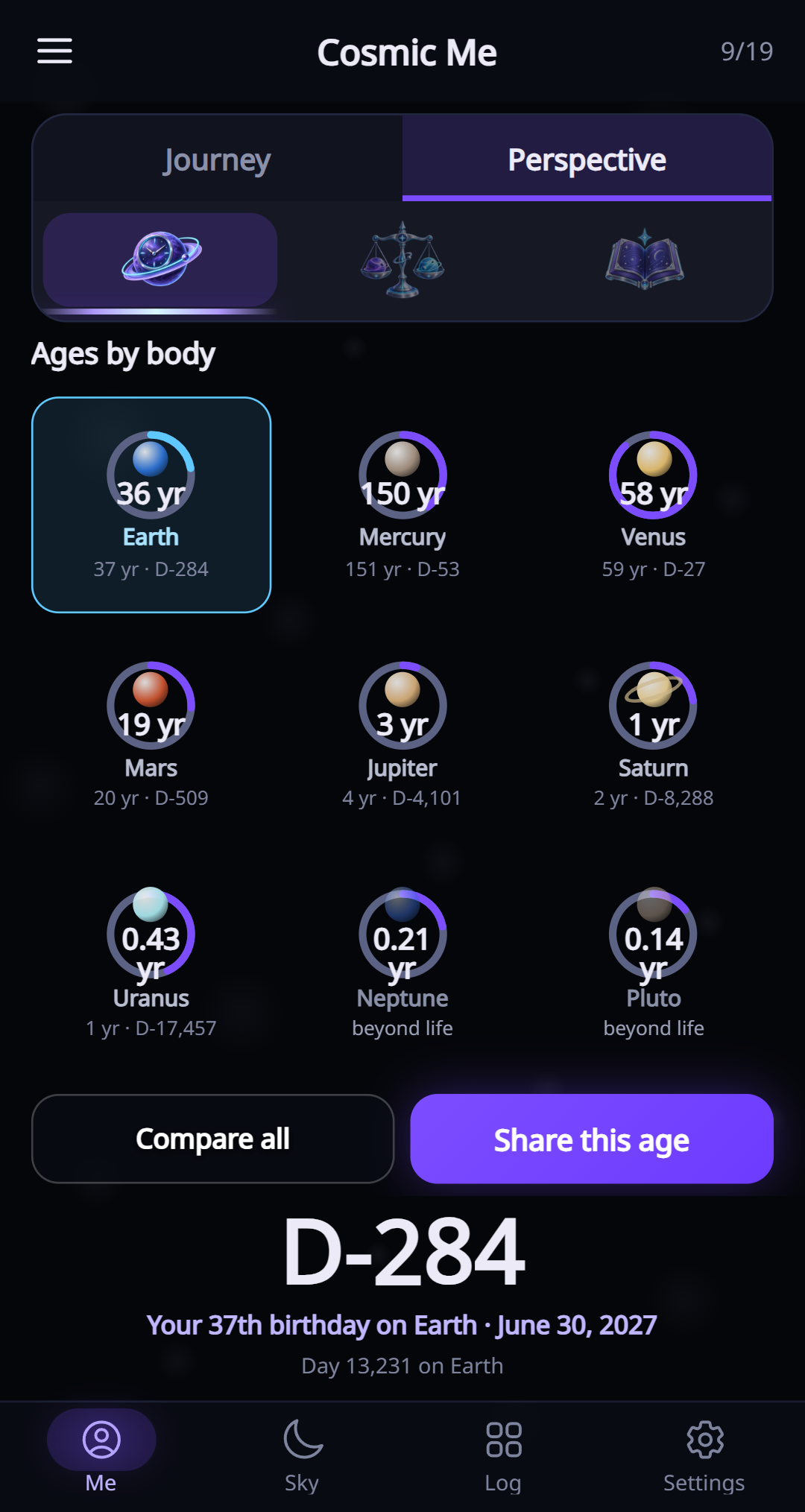
An age here means the number of orbital years since your birth. Shorter orbits give you more birthdays; longer ones give you fewer.

  1. Open Me → Perspective and choose Ages by body.
  2. Choose a world in the grid to see its age and next orbital birthday.
  3. Tap Compare all to open Planet Compare, or Share this age to create an image for the selected world.
  4. In Planet Compare, use 1:1 vs Earth to open the side-by-side view. Select the left or right side to change its world.

Weight by World

Weight by World in the current English app

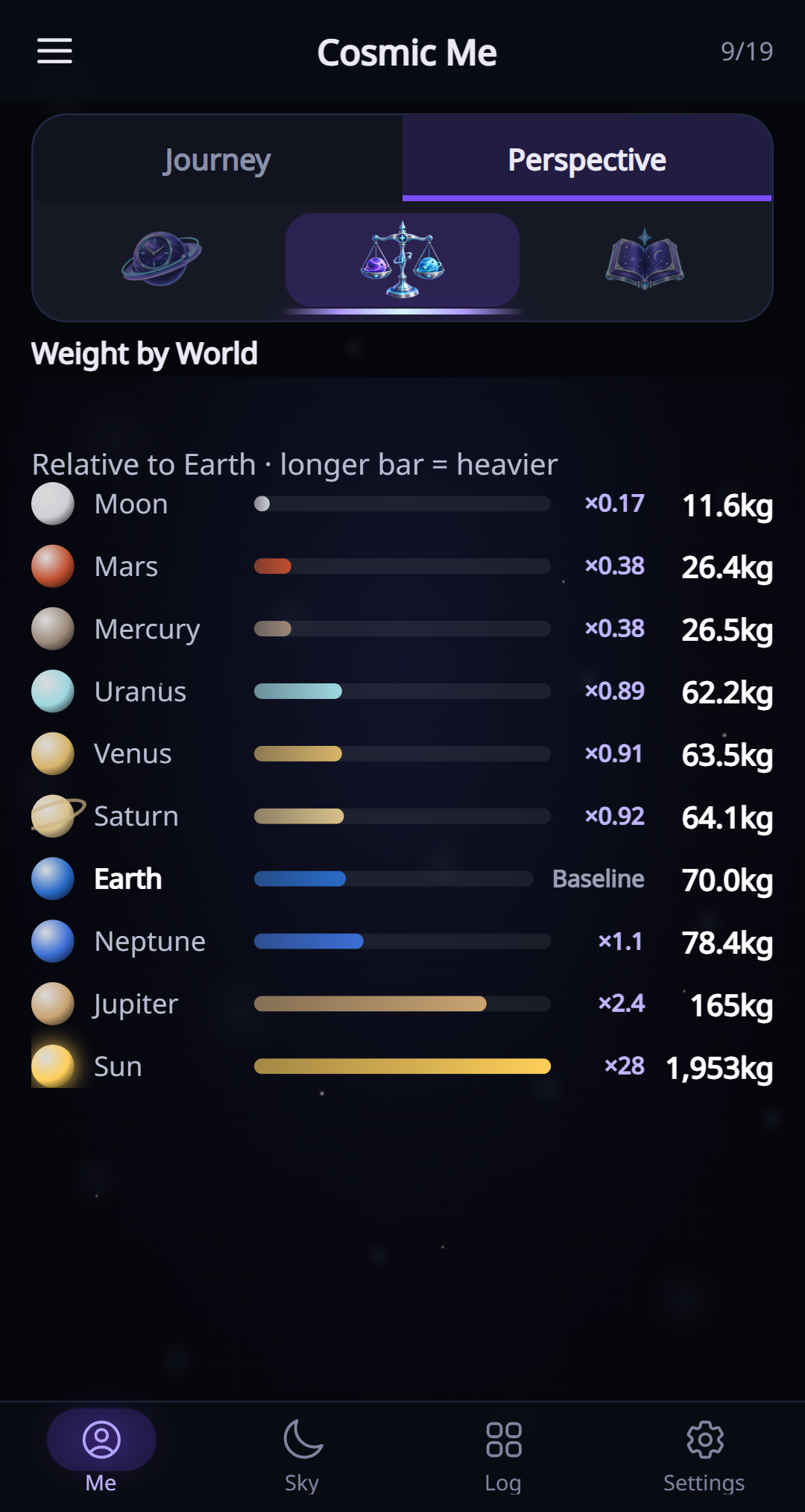
Your mass stays the same. The displayed weight changes with each world’s gravity. Gas giants use a reference gravity because they have no solid surface to stand on.

  1. Choose Weight by World in Me → Perspective.
  2. Read the gravity comparison bars and your equivalent weight for each world.
  3. Change your weight in Settings → Profile. Choose kg or lb in Settings → Units.

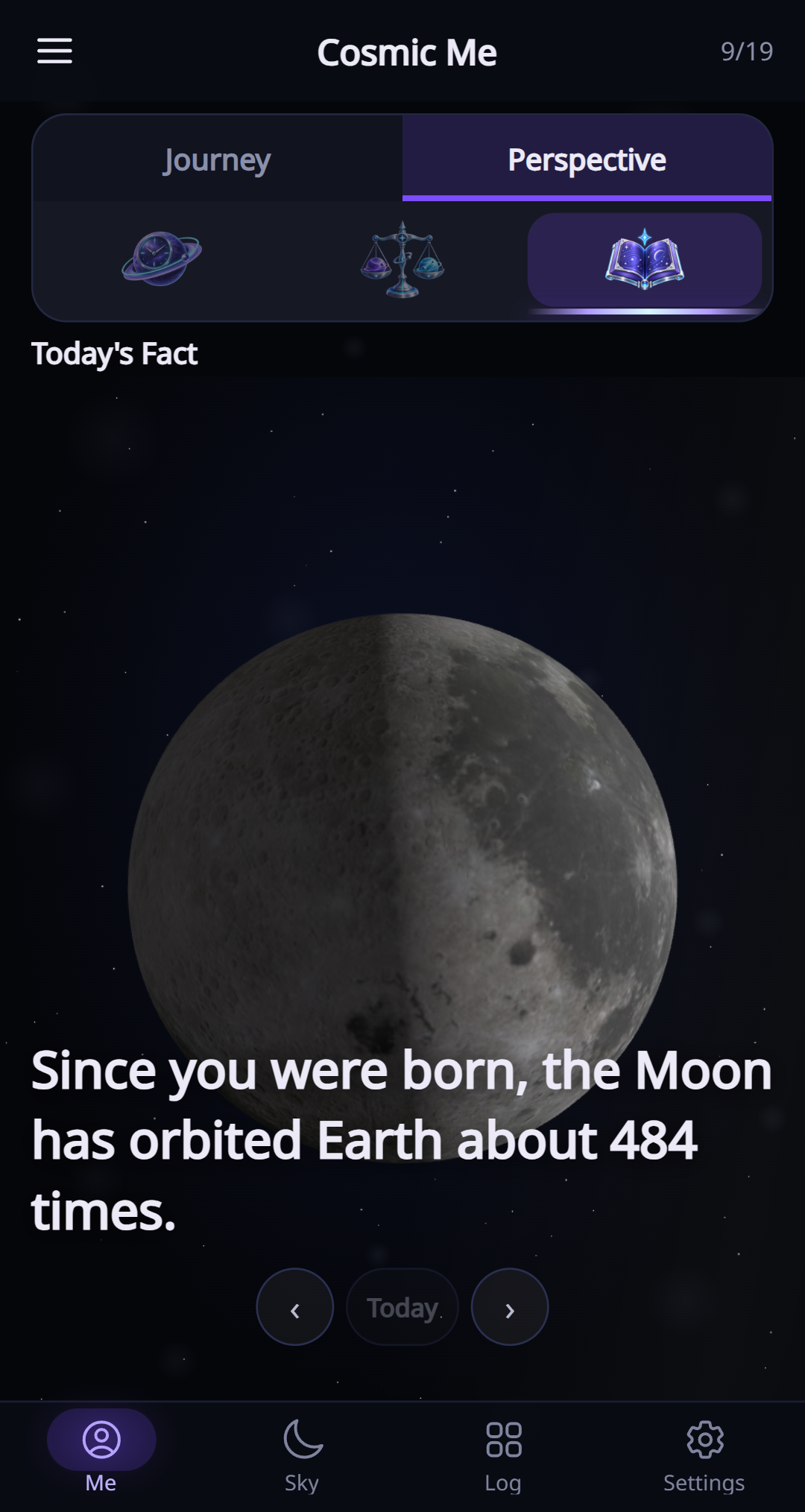
Today’s Fact

Today’s Fact in the current English app

A short astronomy fact gives you something new to explore each day.

  1. Choose Today’s Fact in Me → Perspective.
  2. Read the fact and any related upcoming event.

Sky

Explore what is happening now and what lies ahead.

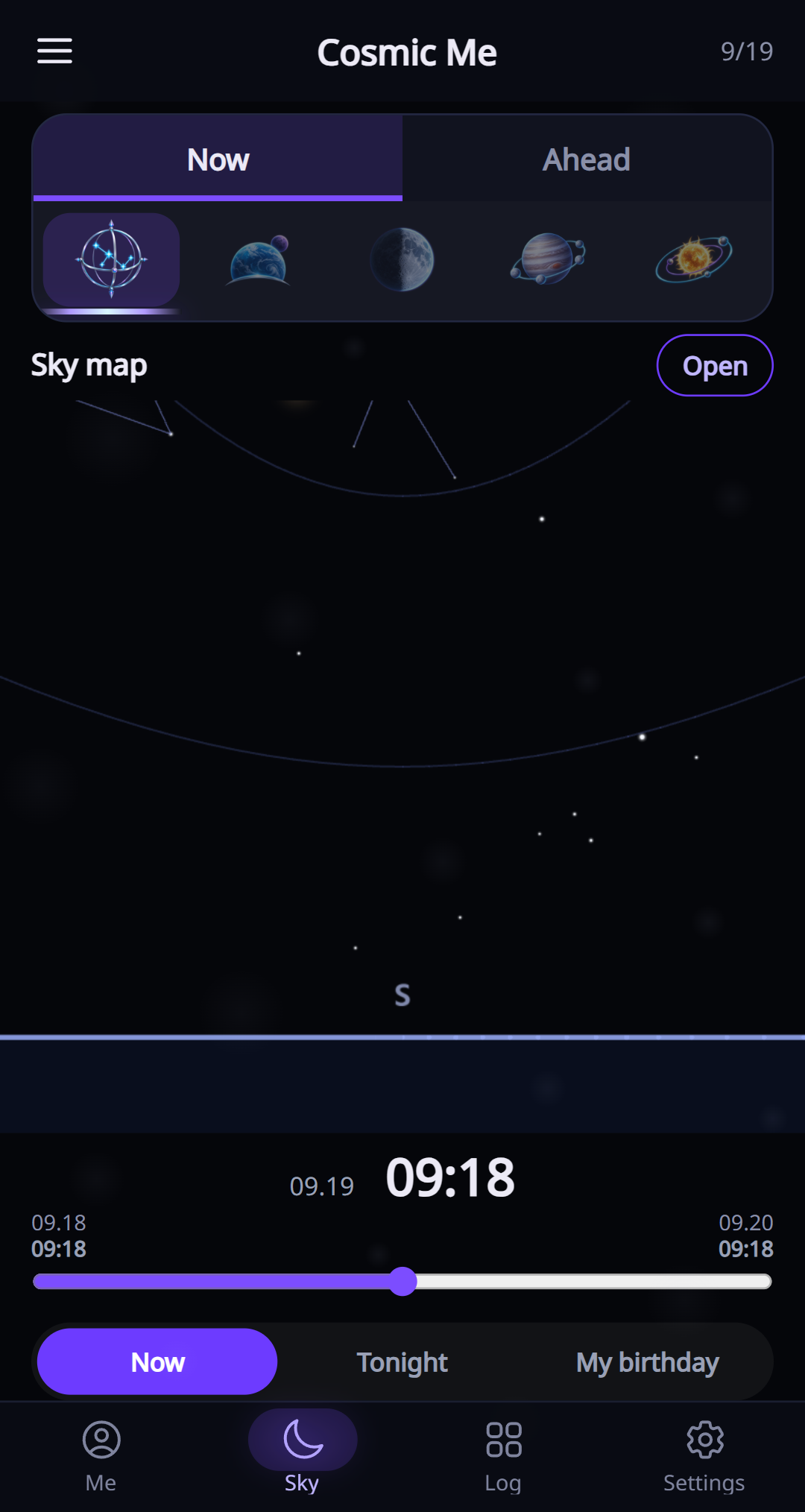
Explore the sky

Explore the sky in the current English app

The sky map places celestial objects around a view of the sky for your saved location.

  1. Open Sky → Now and choose the sky map.
  2. Use Time travel to switch between Now, Tonight and My birthday, or adjust the time.
  3. Drag the view to look around. Match the shown directions to the sky.
  4. Set your location in Settings for information about your area.

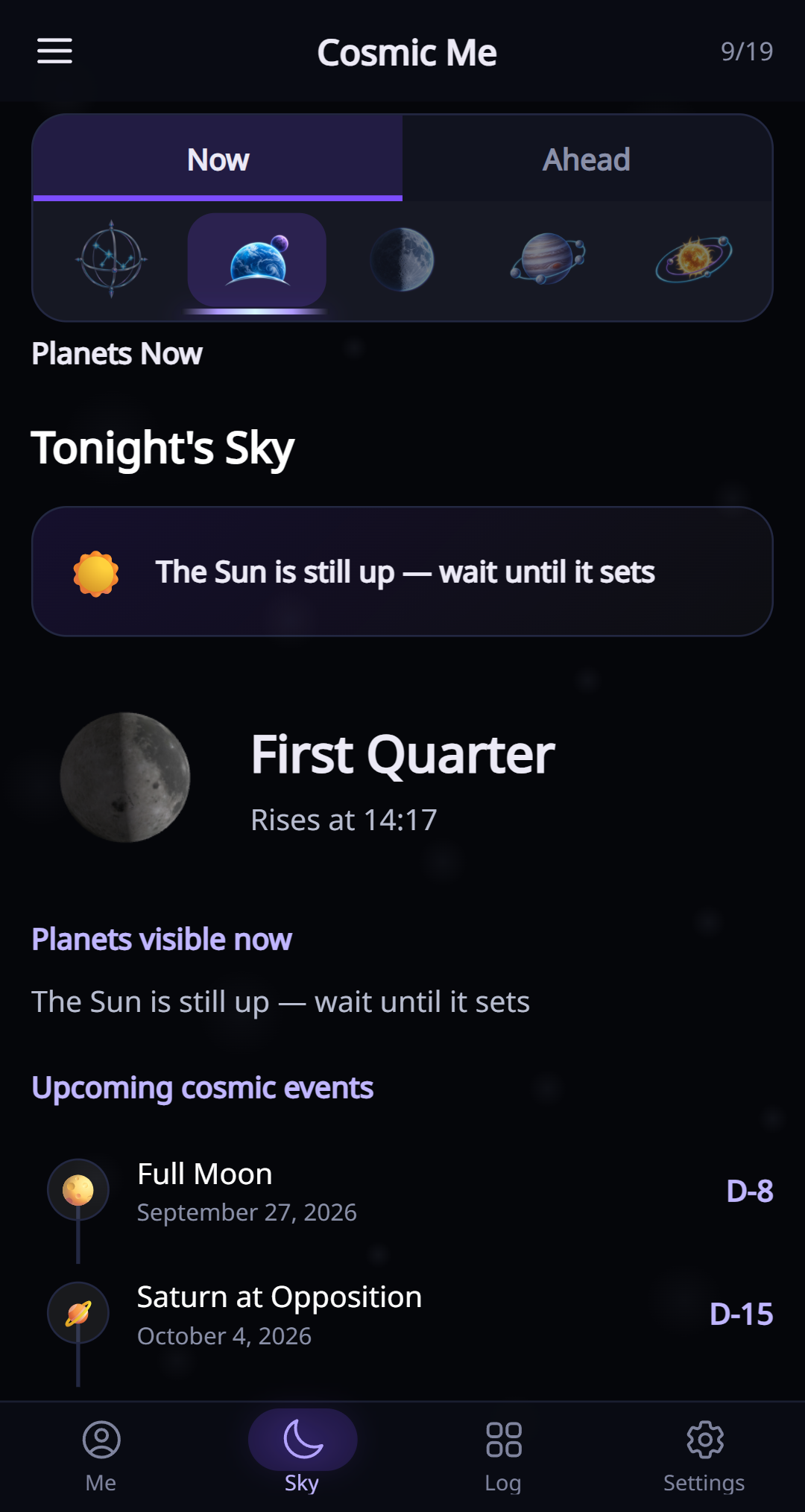
Planets and viewing conditions

Planets and viewing conditions in the current English app

Planets visible now means planets above the horizon at the selected time. It does not guarantee that you can see them through daylight, clouds or buildings.

  1. Open the current sky conditions view in Sky → Now.
  2. Read the planet direction and altitude, and the Moon and cloud information.
  3. Use Compare beside a planet when that action is available.
  4. Read upcoming events for dates and local visibility information.

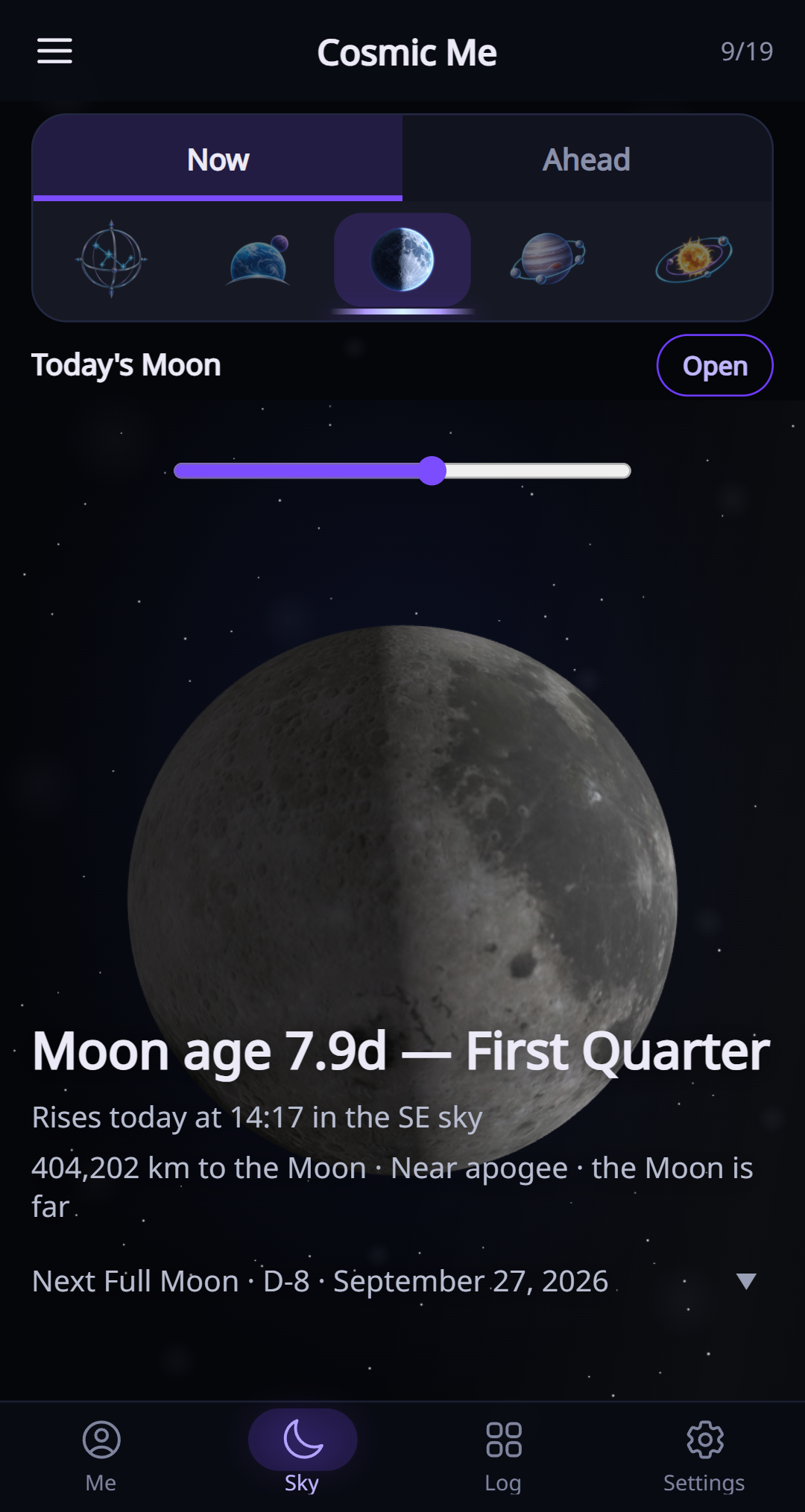
Today’s Moon

Today’s Moon in the current English app

Explore the Moon’s phase, illumination and distance, with more details below the scene.

  1. Choose Today’s Moon in Sky → Now.
  2. Use the round down-arrow to reveal the Moon details.
  3. Change km or mile in Settings → Units to change the Moon distance unit.

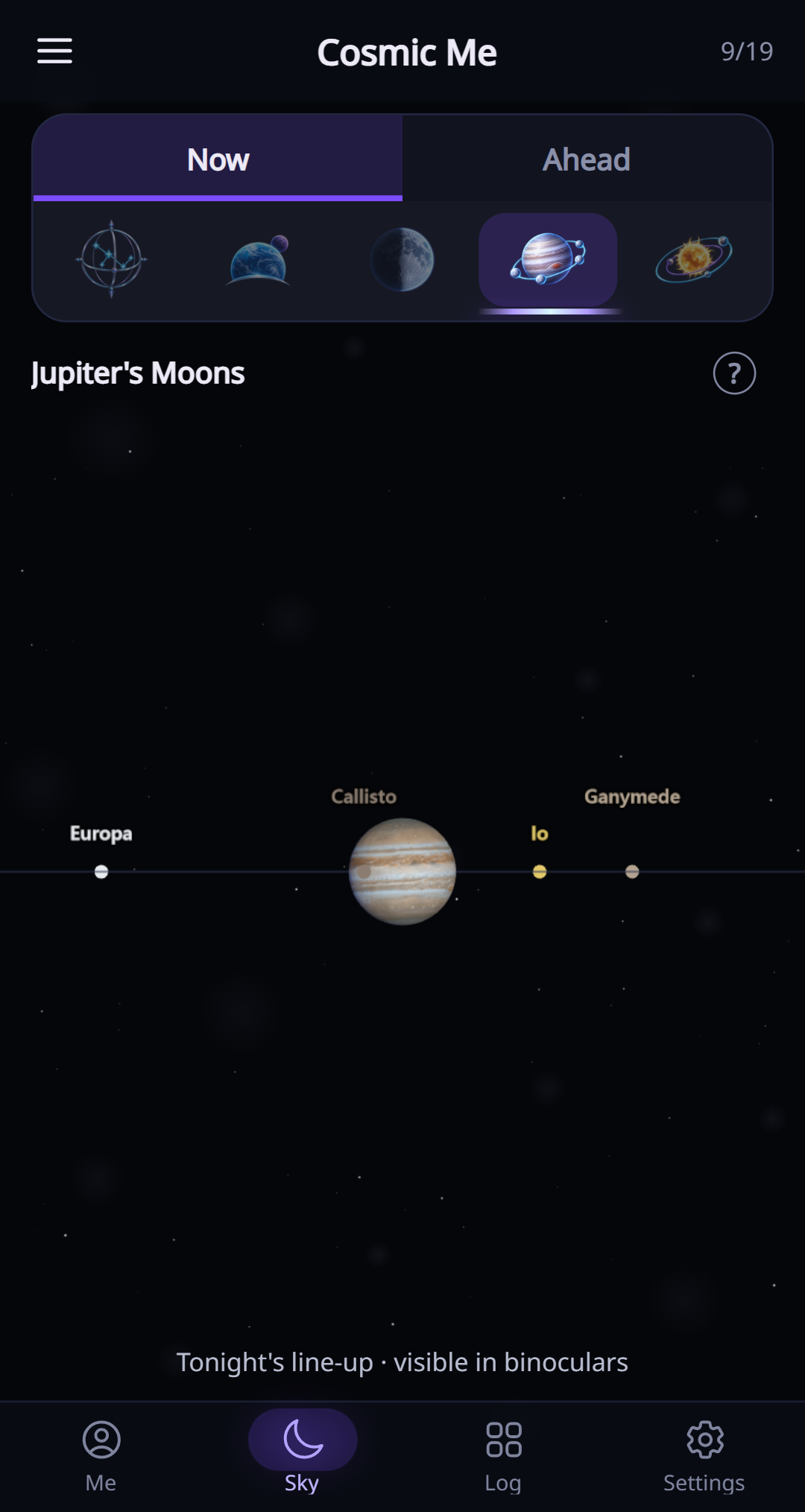
Jupiter’s moons

Jupiter’s moons in the current English app

Follow the four large Galilean moons around Jupiter. Their changing positions come from astronomical calculations.

  1. Choose Jupiter’s moons in Sky → Now.
  2. Read the moon names and positions shown in the view.
  3. Open the information button for the view’s explanation.

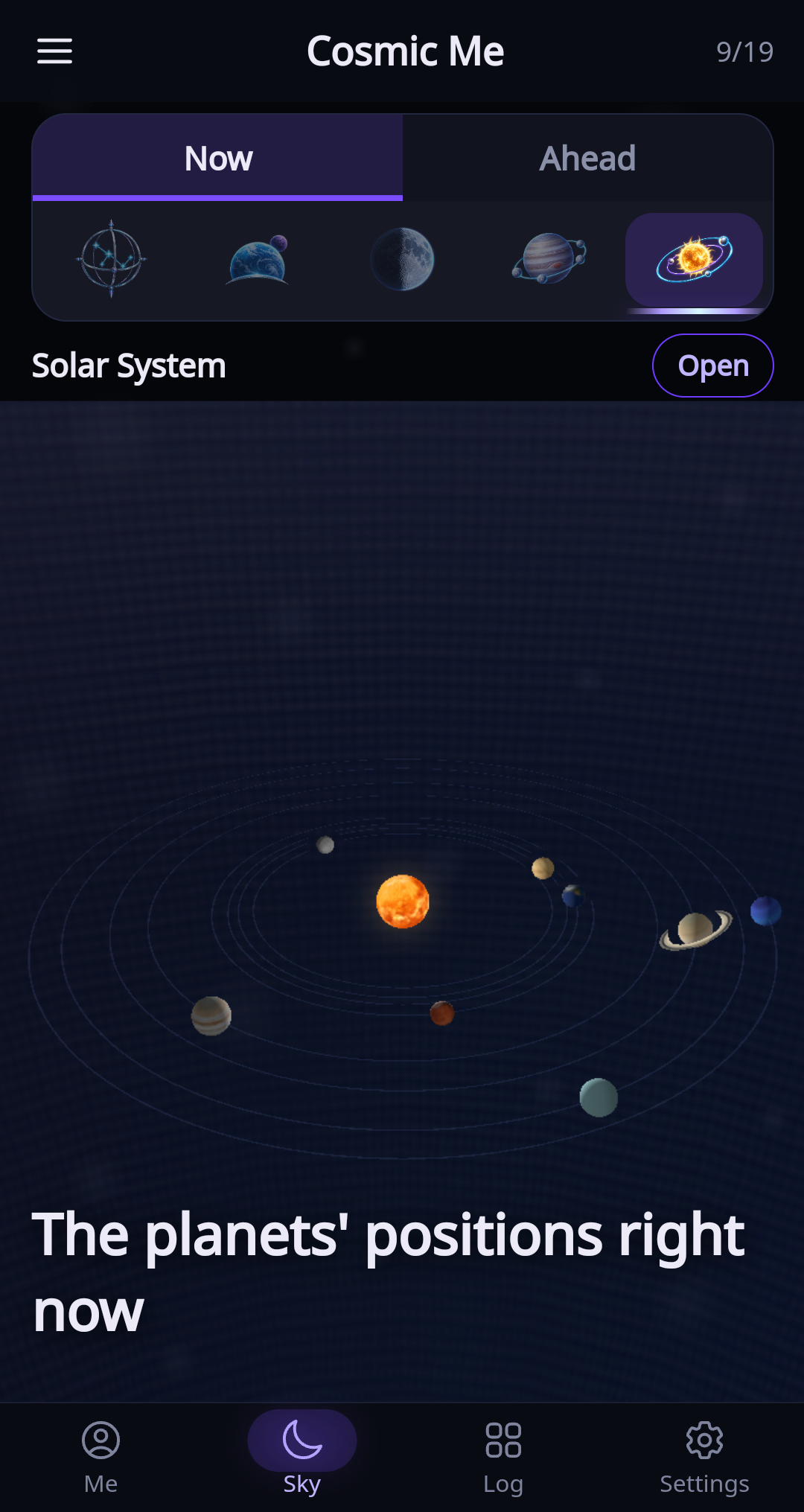
The Solar System

The Solar System in the current English app

See the planets’ calculated arrangement at the selected time. The scene enlarges planets and compresses orbital distances so you can explore them together.

  1. Choose Solar System in Sky → Now.
  2. Tap Open beside the feature title to open the interactive full-screen view.
  3. Drag to rotate, pinch to zoom and tap a planet to explore it.
  4. Use Reset to return to the starting view, or Close to return to the tab.

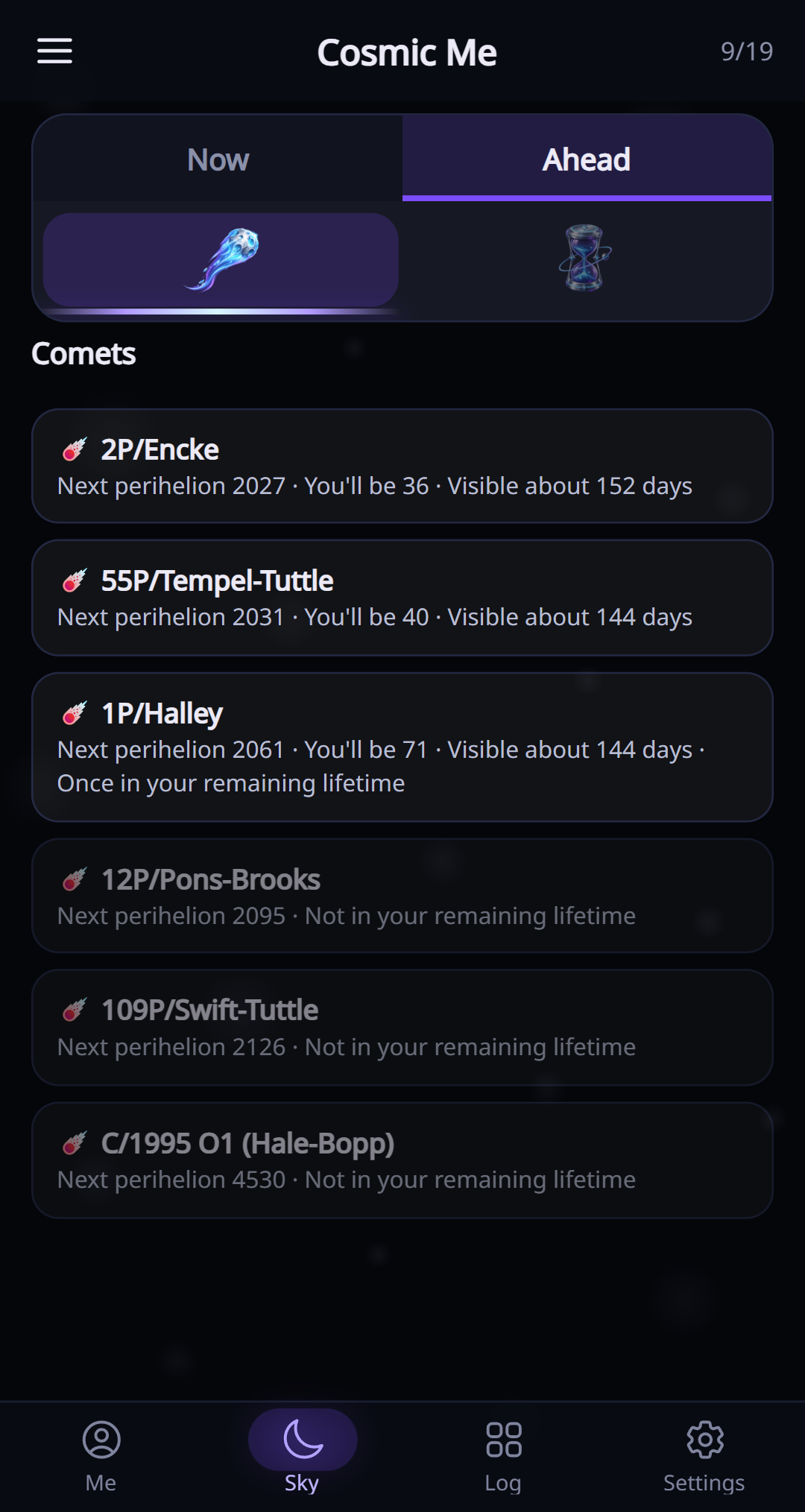
Comets ahead

Comets ahead in the current English app

Explore the comet information offered in Sky → Ahead. Dates describe the listed orbital events; a listed event is not a promise of naked-eye visibility.

  1. Open Sky → Ahead and choose the comet view.
  2. Read the dates and details for each listed comet.

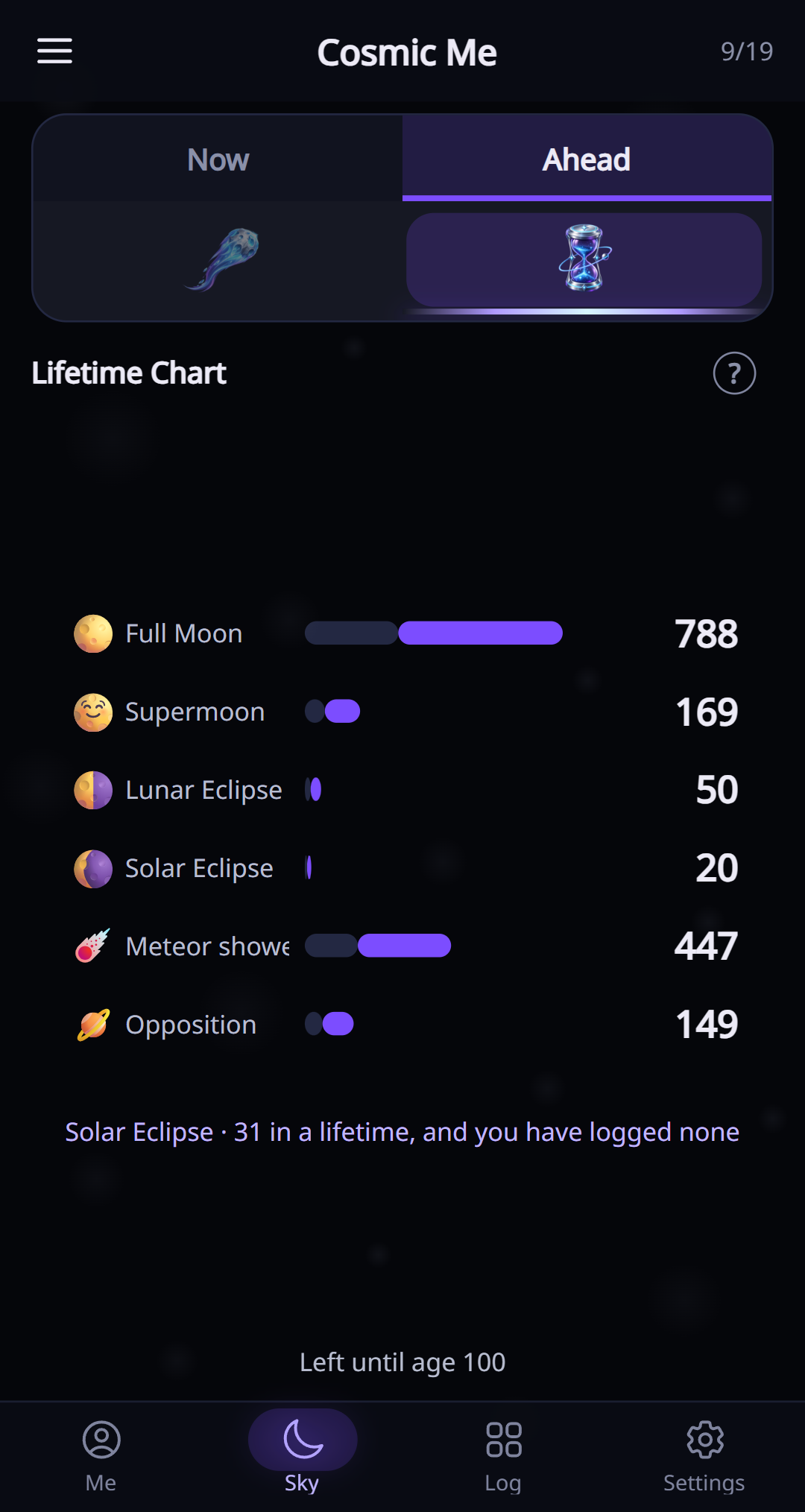
Your lifetime sky count

Your lifetime sky count in the current English app

This chart puts repeating celestial events into the scale of your life. Its totals are estimates, rather than a record of events you personally observed.

  1. Choose the lifetime chart in Sky → Ahead.
  2. Read the event categories and the estimated counts.
  3. Use the information button for the chart’s assumptions.

Log

Keep your observations, connect your family and revisit your birthday.

Observing Log

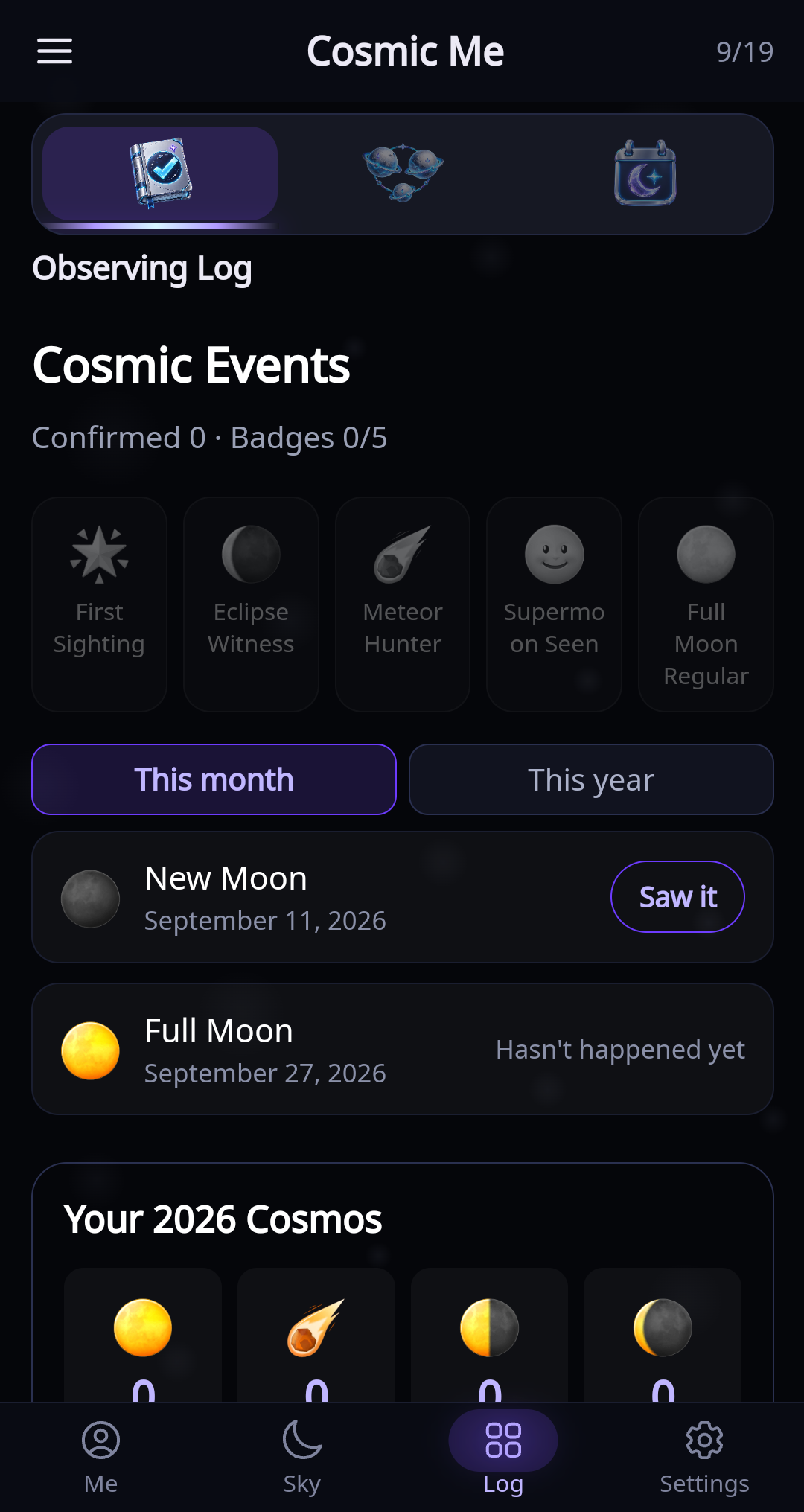
Observing Log in the current English app

Mark the events you observed and keep your own record.

  1. Open Log and choose Observing Log.
  2. Browse the event cards and mark an event after observing it.
  3. Revisit the log to see your recorded observations.

Your family’s cosmos

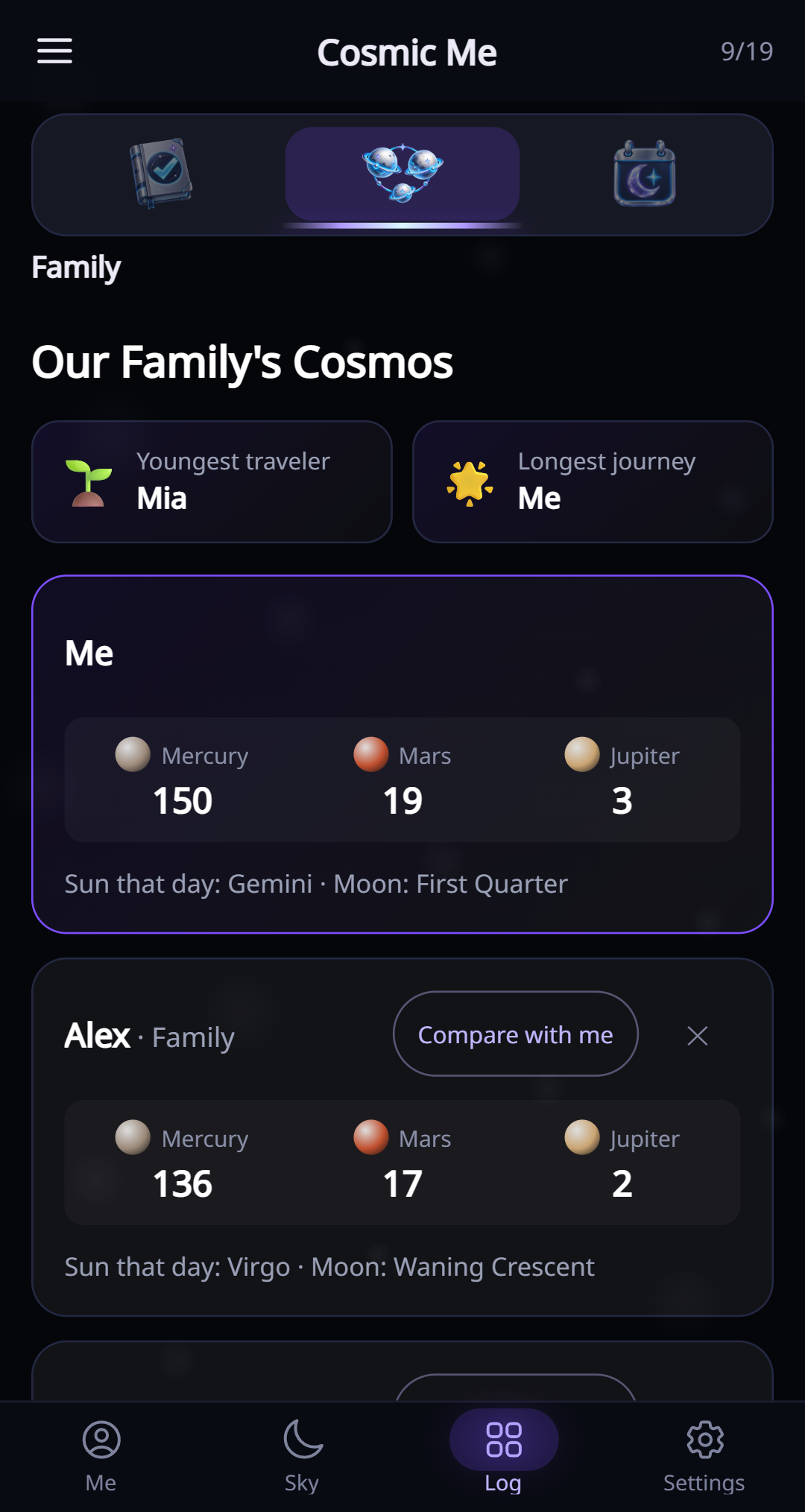
Your family’s cosmos in the current English app

Add family members to compare their journeys and explore their birthday skies.

  1. Choose Family in Log and add a member.
  2. Enter the member’s name and birthday.
  3. Tap a member to explore their cosmos. Use the member’s delete action to remove them.
  4. The free version supports up to five family members.

The universe on your birthday

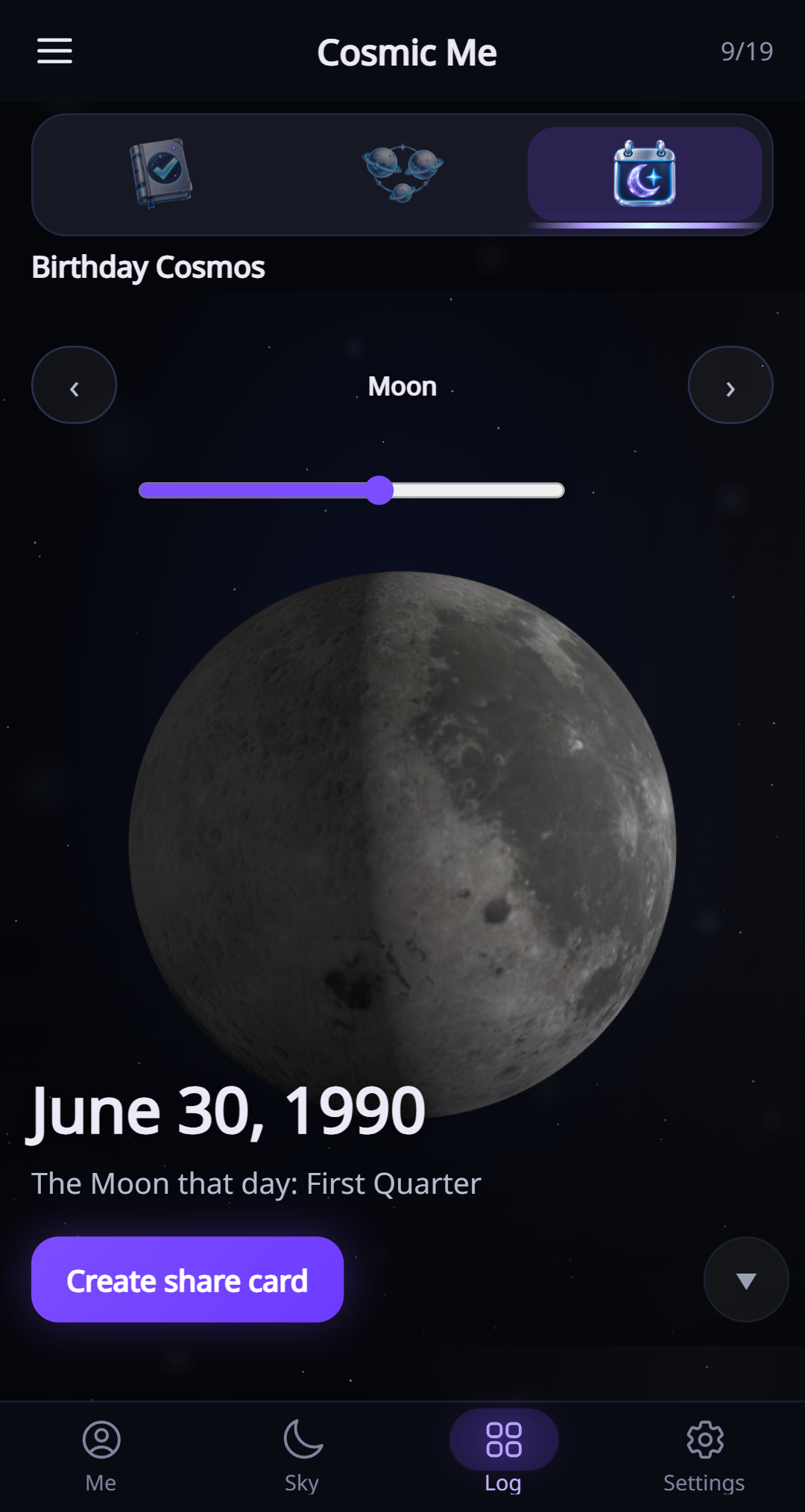
The universe on your birthday in the current English app

Birthday Cosmos reconstructs celestial information for your birth date and time, using your profile and saved location.

  1. Choose Birthday Cosmos in Log.
  2. Use the left and right arrows to switch between the Moon, constellation, listed planets and the light-journey star. The planets scene appears when the list is not empty.
  3. In the planets scene, the listed planets are displayed together. Their relative apparent sizes account for their distance from Earth at that time; all are enlarged by the same display scale.
  4. Use Create share card to capture the scene, or the down-arrow on its right to reveal the details.

Make a share card

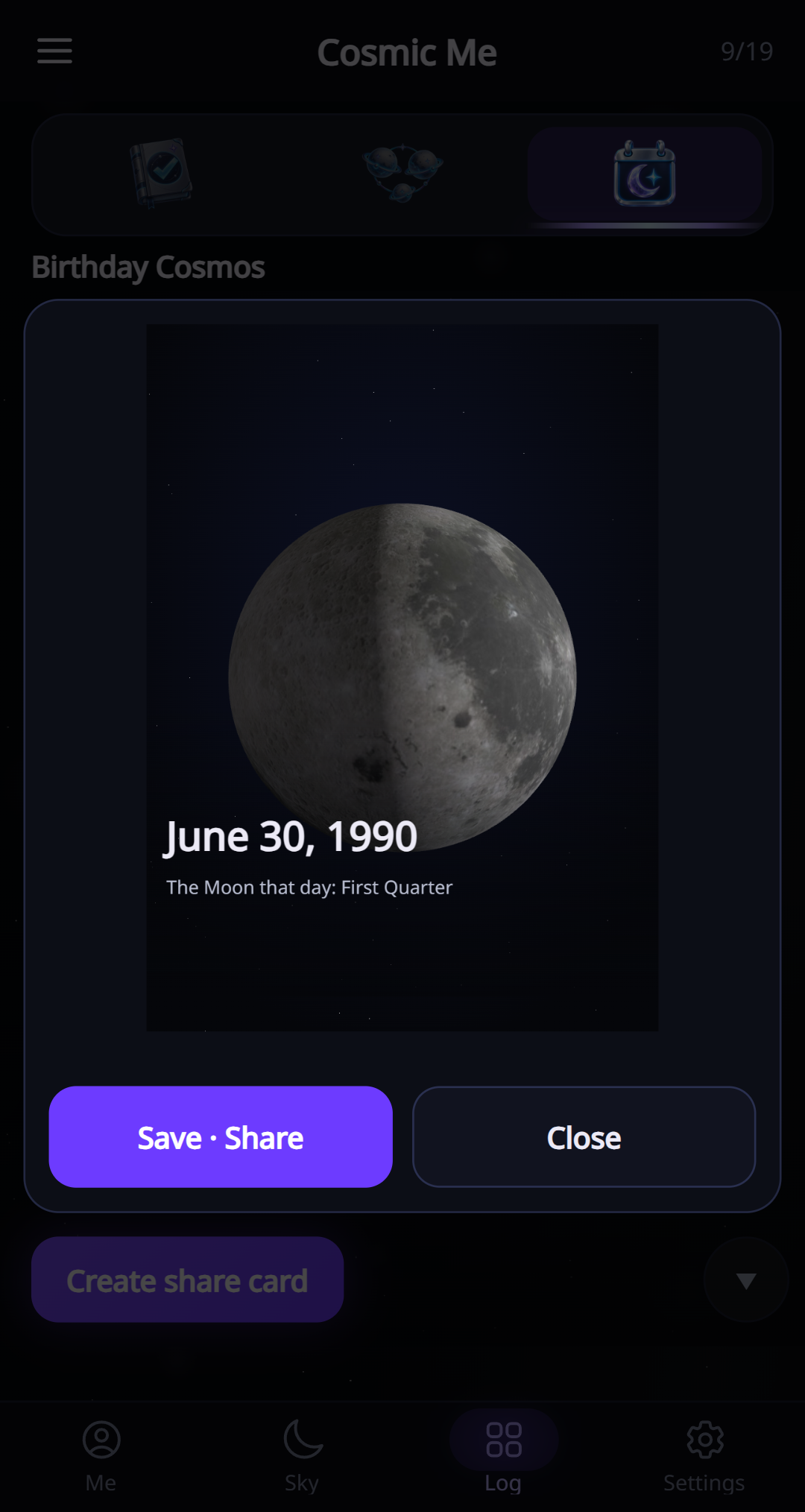
Make a share card in the current English app

Turn a view of your cosmos into an image you can send or save.

  1. Tap Create share card from a feature that offers it.
  2. Choose a template and check the preview.
  3. Use the share or save action, then choose a destination.
  4. Review any personal details on the card before sending it.

Settings

Adjust your profile, language and everyday preferences.

Your profile

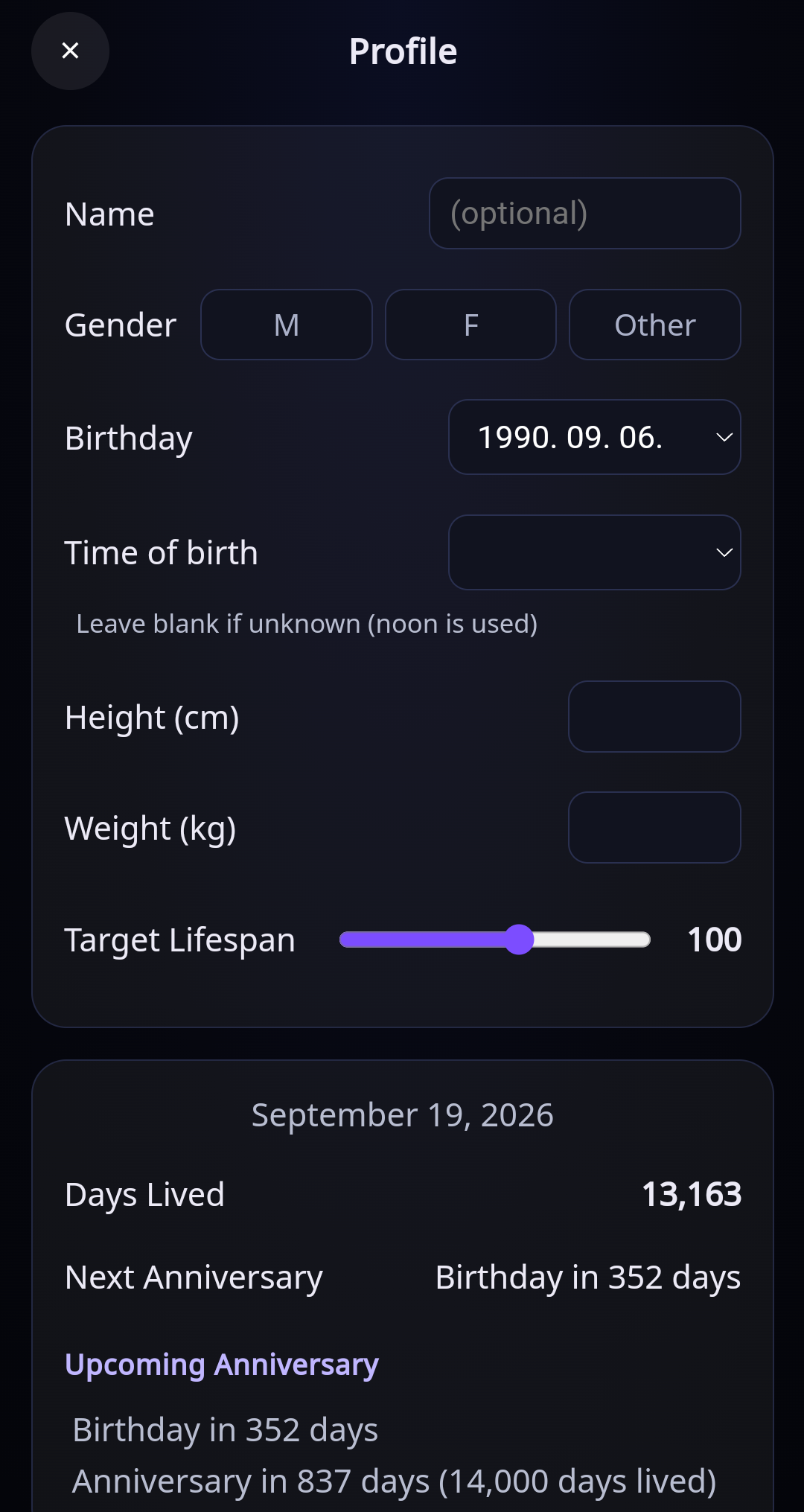
Your profile and profile image in the current English app

Update the personal details used throughout the app.

  1. Open Settings → Profile to edit your birthday, birth time and other details.
  2. Adjust Target Lifespan to change the horizon used for future orbital birthdays and lifetime charts. This is your chosen target, not a predicted lifespan.

Make a cosmic profile image

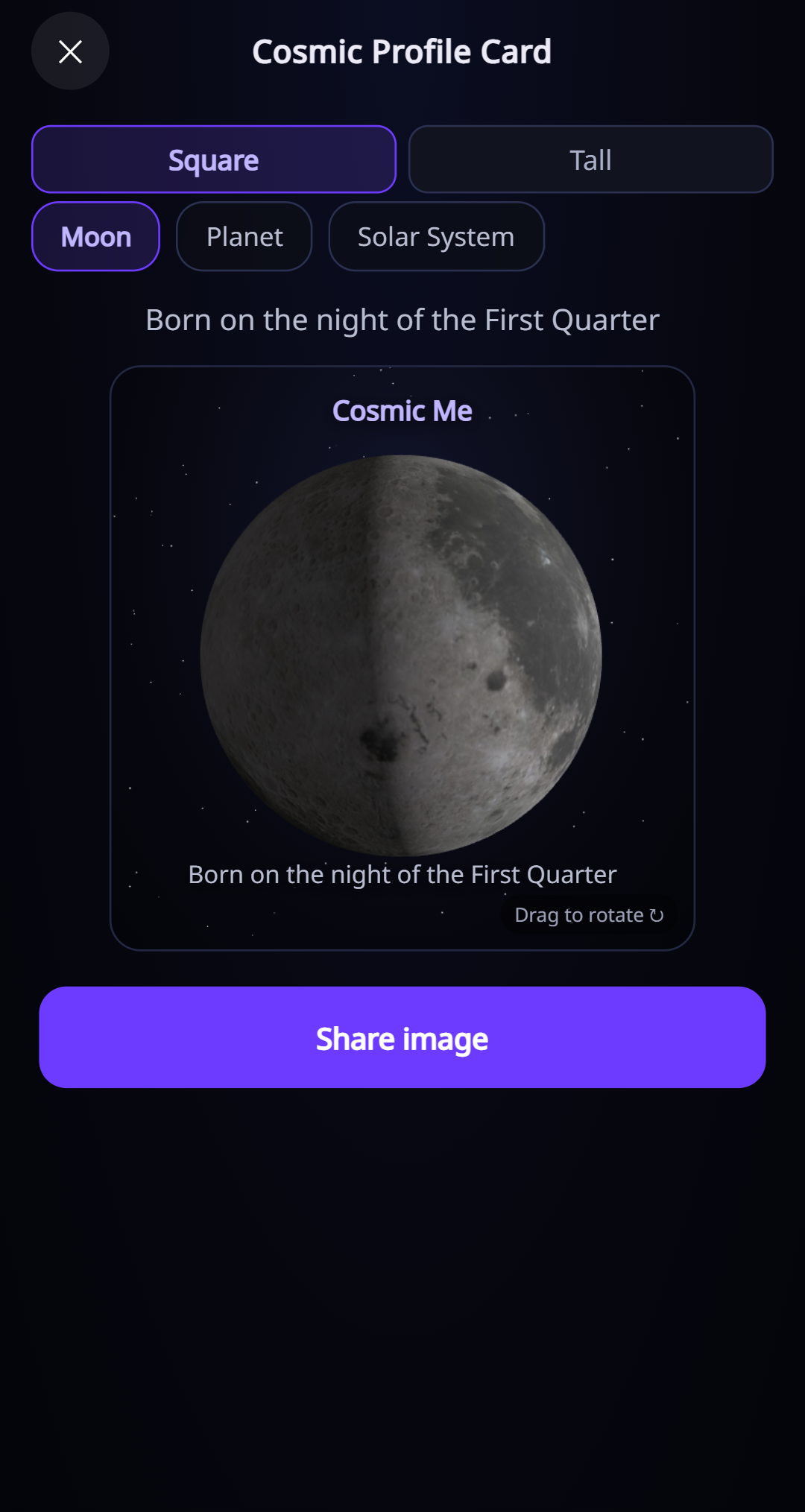
Cosmic Profile Card in the current English app

Create an image using the Moon, a planet or the Solar System.

  1. Open Settings → Make profile image.
  2. Choose Square or Tall, then choose Moon, Planet or Solar System.
  3. Drag the subject to rotate it, then use Share image.

Units, language and location

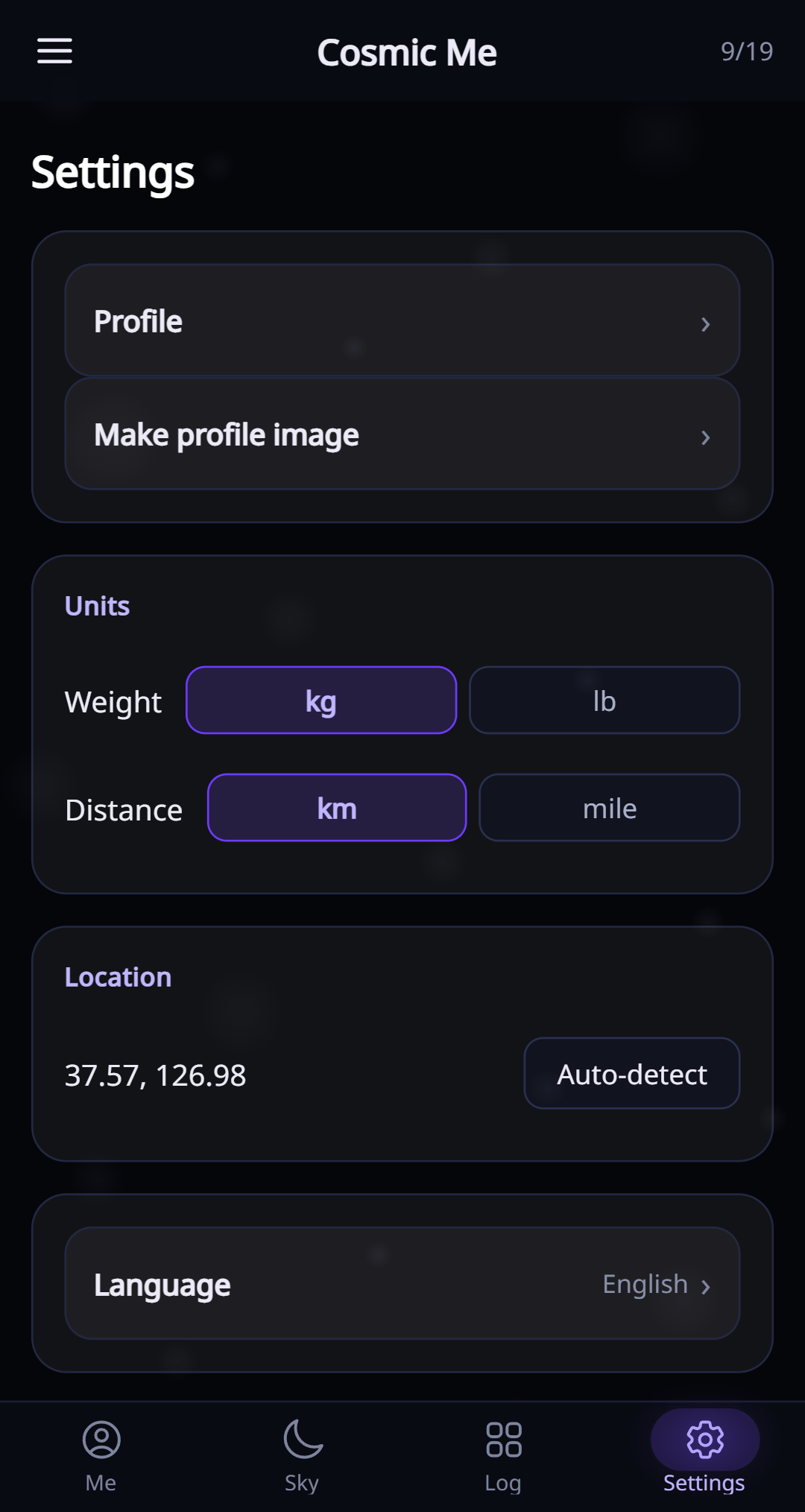
Units, language and location in the current English app

These choices affect the app. The help page is maintained in English and can be translated by your browser.

  1. In Units, choose kg or lb for weight, and km or mile for distance where supported.
  2. Open Language and select a language. The introduction’s language selector uses this same setting.
  3. In Location, tap Auto-detect to update your saved coordinates.
  4. If location permission is denied or the request times out, check Android’s location settings and try again.

Notifications

Receive local reminders for daily astronomy facts, celestial events, full moons and your birthday.

  1. In Settings → Notifications, tap Enable or Update.
  2. Allow notifications when Android asks. If you previously denied permission, enable it in Android’s app settings.
  3. Tap Turn off to cancel the app’s scheduled notifications.
  4. Open the app periodically to refresh future reminders. Delivery can vary with Android battery and notification settings.

Sound and the home-screen widget

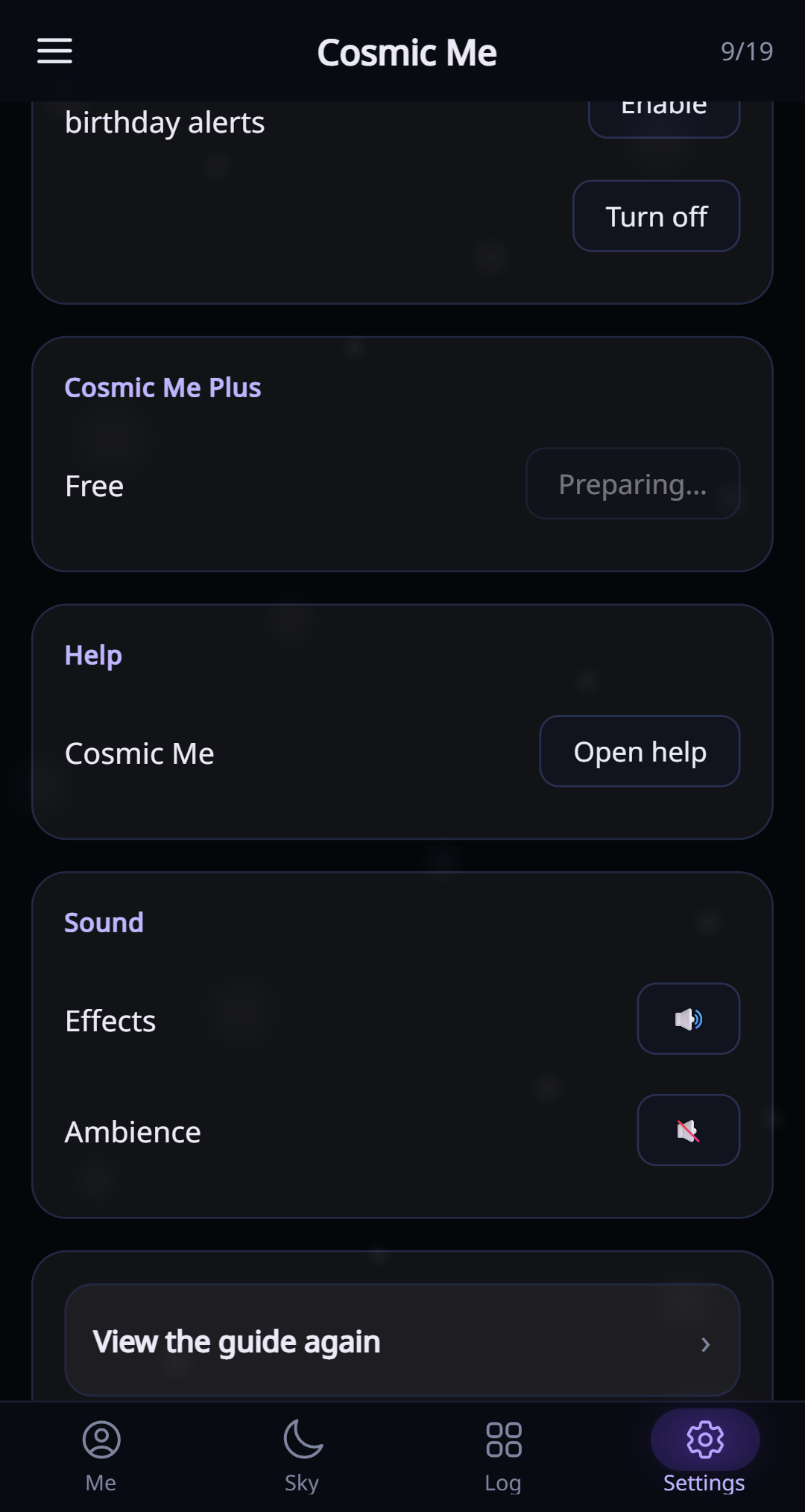
Sound settings control effects and ambience separately. Android also offers a home-screen widget for a quick view of your cosmos.

  1. Use the Effects and Ambience buttons in Settings to turn each sound on or off.
  2. To add a widget, open your Android launcher’s widget picker and choose Cosmic Me.
  3. Widget availability and placement depend on your launcher.

Help, the introduction and contact

Help, the introduction and contact in the current English app

Help and the introduction are separate: Open help opens this reference page; View the guide again replays the app’s introduction.

  1. Tap Open help to open the English page in a browser. Use the browser’s Translate option for another language.
  2. Tap View the guide again to replay the introduction.
  3. Tap Contact us to start an email in your mail app.
  4. Cosmic Me Plus is preparing. The current version does not provide a subscription purchase.

When something does not work

Most astronomy views work offline once the app is installed. Weather information and the online help need an internet connection.

  1. If cloud information is unavailable, the sky view can still use Moon brightness; reconnect and try again for weather data.
  2. If Open help reports that a browser could not open, check that a browser is installed and enabled. A page-loading error inside the browser needs a network check.
  3. If a share action fails, return to the scene, wait for it to finish drawing and try again. You can choose a different sharing destination.
  4. If sound is silent, check both the app’s sound controls and Android’s media volume.
  5. For other problems, use Settings → Contact us and describe the screen and action you were using.

A whole universe, from one birthday.

Meet your birthday Moon, discover your cosmic age and follow your journey through space.

Free to start26 app languagesCore astronomy offlineNo account