Three permissions — miss one and it fails silently
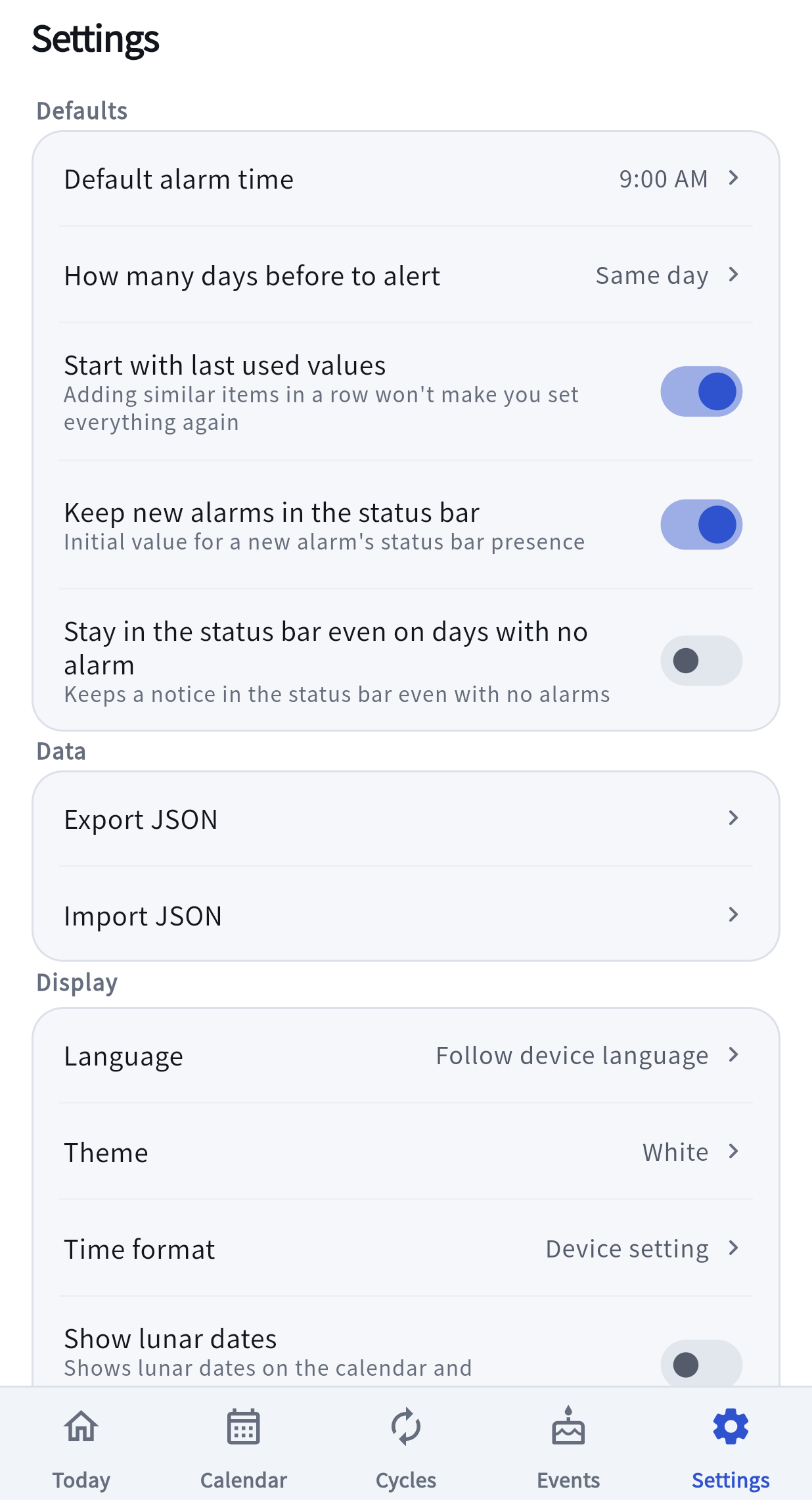
The first time you open the app you'll see “For alarms to ring on time”. Tap Allow and it walks you through them in order. If you skipped it, turn them on any time from Settings › Alarm status. When all three rows read Granted you're set. If any row says Needs permission, tap the Settings › on that row.
- Notification permission Needed to show schedules in the status bar. Without it, nothing is displayed at all. If the system has stopped asking, use Open settings on that row and turn it on in your device's notification settings.
- Exact alarms Makes them ring on time even while the device is asleep. Without this, alarms slip by minutes or even hours.
- Battery optimization exception Keeps alarms alive even on days you don't open the app. Set it to “Unrestricted” in the list.