Smart MDT · Mandalart
Turn big goals into daily action
A goal manager that uses Mandalart to unfold one core goal into 64 small actions, then lets you check them off daily and build momentum with the calendar and analytics.
- 26 languages
- Mandalart 3×3 · 9×9
- Daily · weekly · monthly tasks
- Calendar completion rate
- Analytics charts
- Drive · Chrome sync
- Phone·Tablet·PCAuto-sync
- 26Languages
- 3×3 · 9×9Mandalart
Unfold 1 core goal into 8 sub-goals, then 64 concrete actions.
One tap to complete. Instantly reflected in the calendar, analytics, and completion rate.
Google Drive keeps your phone, tablet, and Chrome in sync automatically.
Supports 26 languages plus light and custom themes.
Get started
Use Mandalart to turn your big goals into daily action.
On PC? Use the Chrome extension
Write comfortably on a big screen with your keyboard — it syncs with your phone automatically. Free on the Chrome Web Store.
- 1Search SmartMDT on the Chrome Web Store.
- 2Add the extension, then sign in with the same Google account.
- 3Goals and to-dos from your phone sync right over to your PC.
5-minute quick start
New here? These 4 steps get your first Mandalart rolling.
- Create a goalGoals tab → + → enter a title, then pick 3×3.
- Fill in the cellsPut your core goal in the center and sub-goals in the 8 surrounding cells.
- Add tasksTap a cell, turn on "Add task," and choose daily / specific days / weekly / monthly.
- Check in dailyOn Home, tap a task to complete it — instantly reflected in the calendar and completion rate!
Intro · What is Mandalart?
SmartMDT is a goal manager that uses the Mandalart method to break a vague, big goal into actions you can do every day.
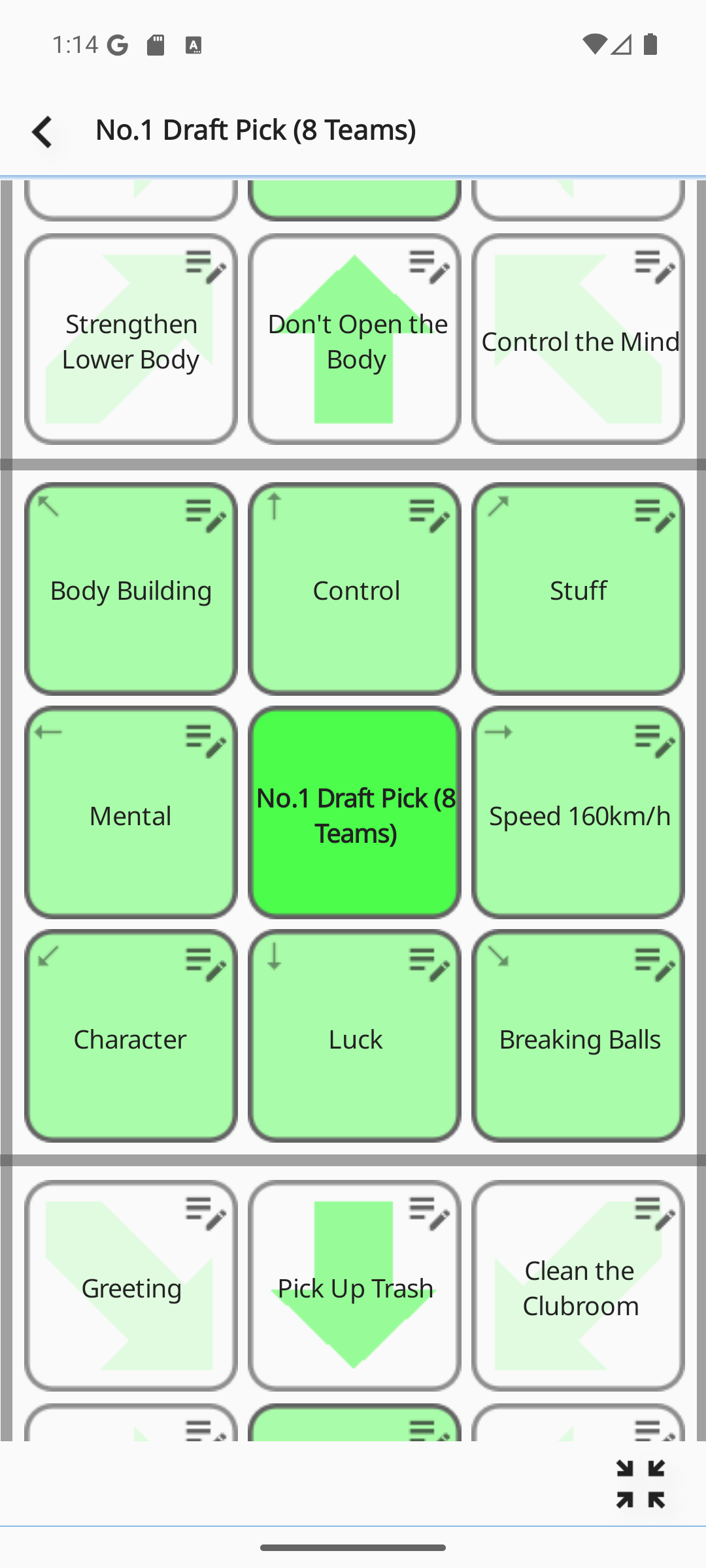
- 1 core goalPut the biggest goal you want to achieve in the center cell.
- 8 sub-goalsIn the 8 surrounding cells, write the ways to reach your core goal.
- 64 actions (9×9)Unfold each sub-goal into 8 actions. It's the method made famous by baseball player Ohtani's goal-setting chart.
Today's tasks
Open the app and today's tasks are gathered into daily, weekly, and monthly groups.
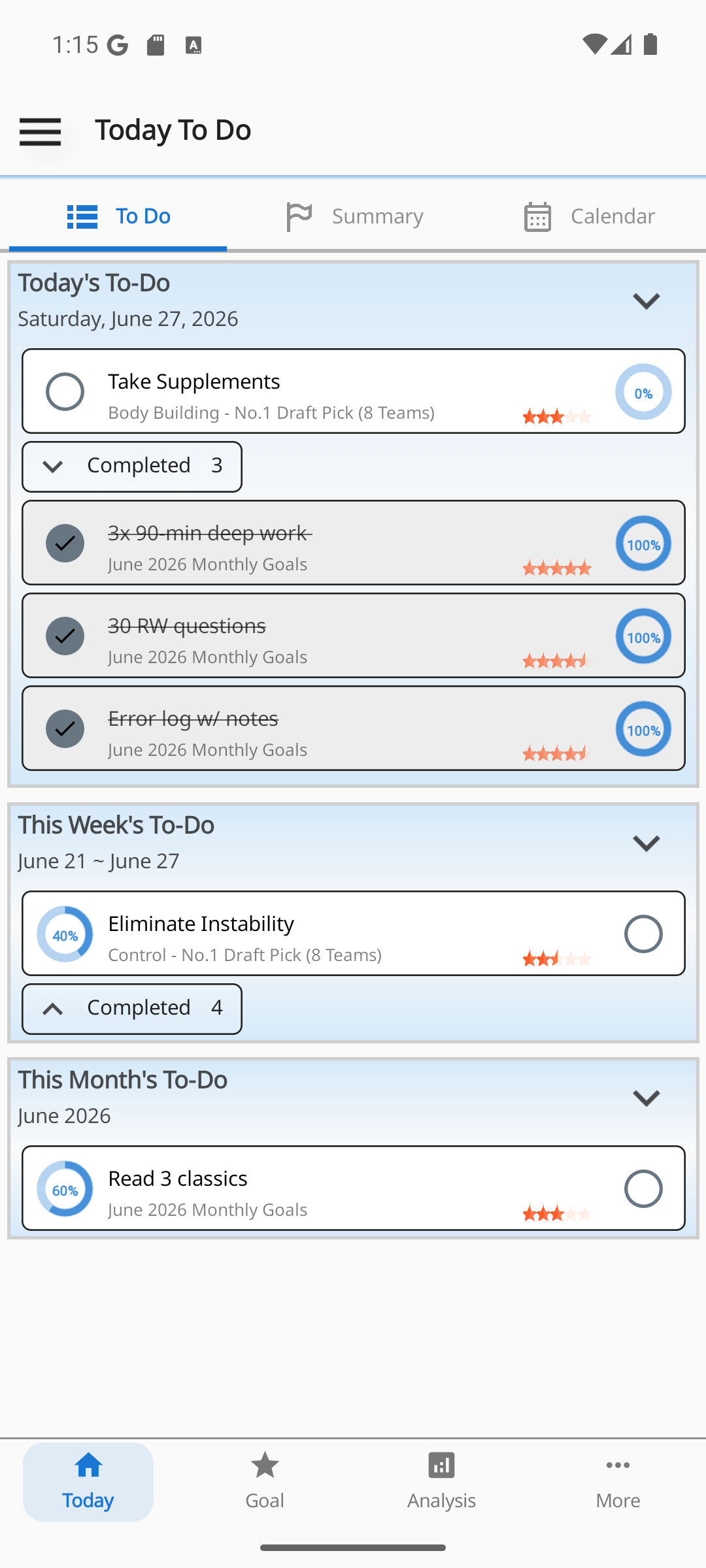
- Daily, weekly, monthlyEach group can be collapsed or expanded, and weekly or monthly groups with no tasks are hidden automatically.
- Separate completed listCompleted items are gathered separately in each group, with a count beside them (this list can be collapsed too).
- Date headerThe top shows today's date, this week's range, and this month.
- Empty stateIf you have no goals, an "Add a goal" prompt appears; tap it to jump to the Goals tab.
day-of-week repeat and show only on today's weekday; weekly and monthly tasks pull this week's (starting Monday) and this month's items and compare them against completion records.Summary · Life timeline
Today's, this week's, and this month's completion rates, your life timeline, and your active goals — all on one screen.
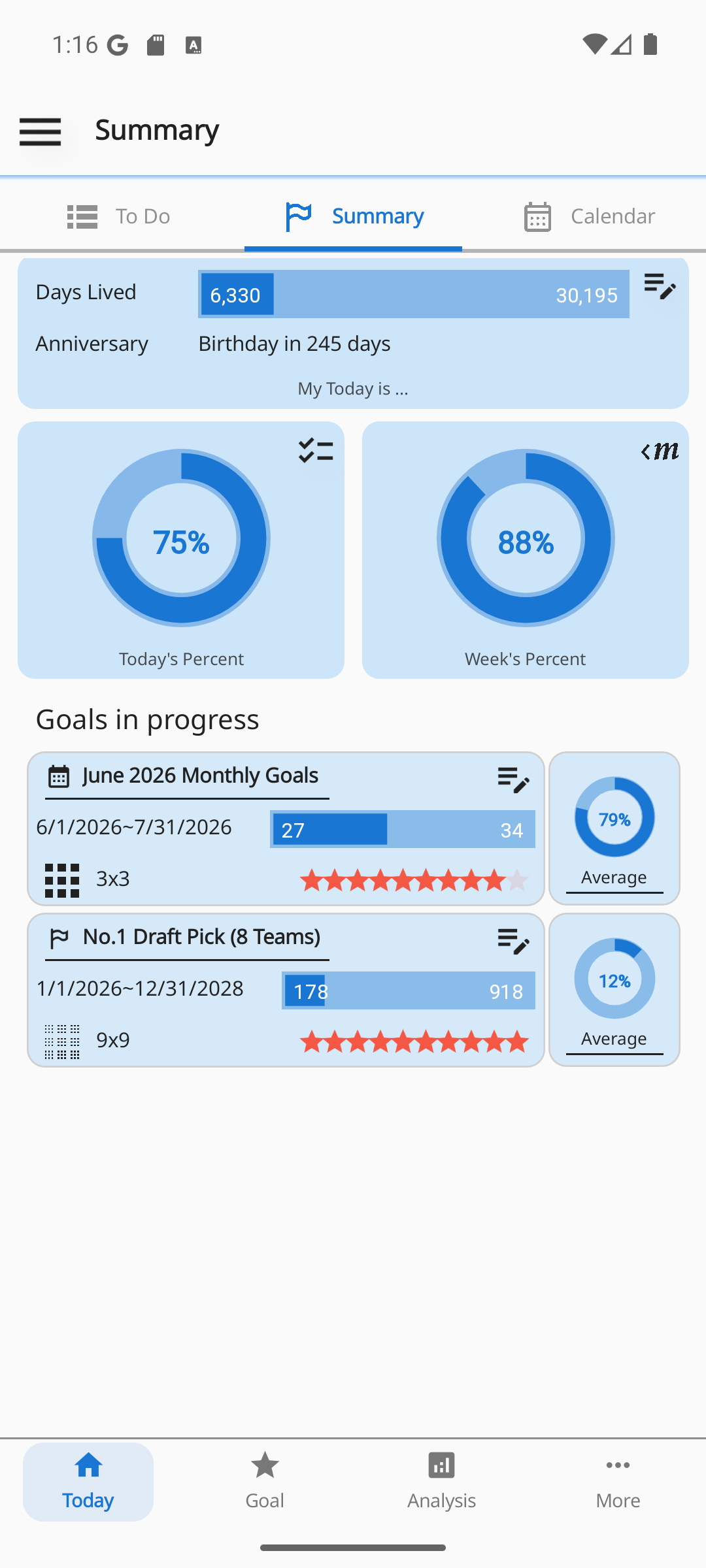
- 3 completion ringsToday's, this week's, and this month's completion rates as rings. Flip the card left or right to switch between the weekly and monthly rings.
- Life progress barShows days lived, days remaining, and upcoming anniversaries as bars. (Requires your date of birth and target lifespan in Personal info.)
- Goal listActive goals are sorted by highest daily average completion rate, then by priority. From each goal you can jump straight to edit, move, or analytics.
how much was completed ÷ the day's total task count. Weeks start on Monday.Calendar — stars & completion bars
Each day shows how much you completed with a star and a bar, so you can see a whole month's flow at a glance.
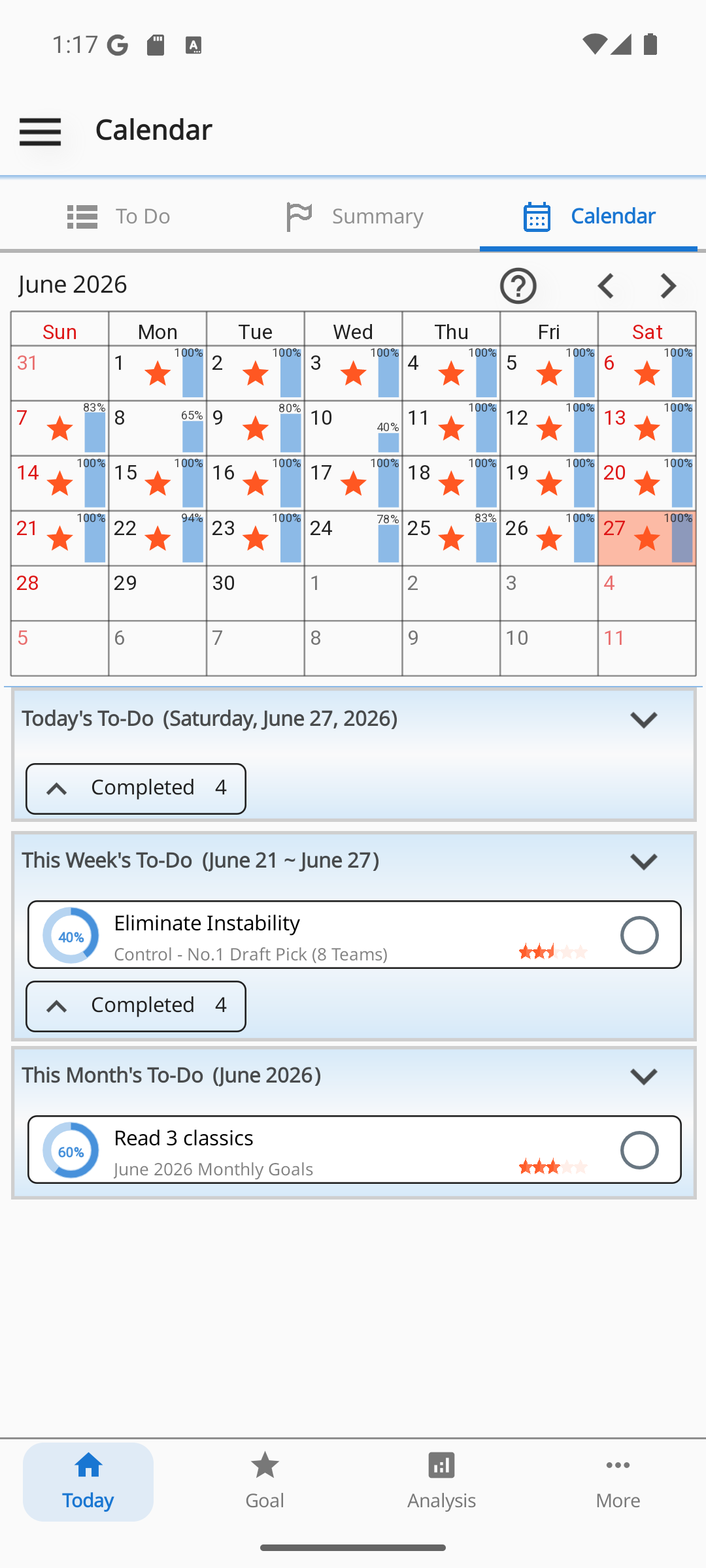
- Completion barThe bar height inside each cell is set by that day's completion rate.
- Star (★)A star appears on days where the completion rate is 80% or higher.
- Tap a dateTap a date to expand that day's daily, weekly, and monthly tasks and its completed list.
80 ≤ completion rate. Completions from other devices and Chrome are reflected once synced.04·1How to read a calendar cell
My goal list
See your goals gathered one per row. Each row shows an icon, the title, "type / period" (e.g. 9x9 / 2026. 6. 1.~), and a priority star.
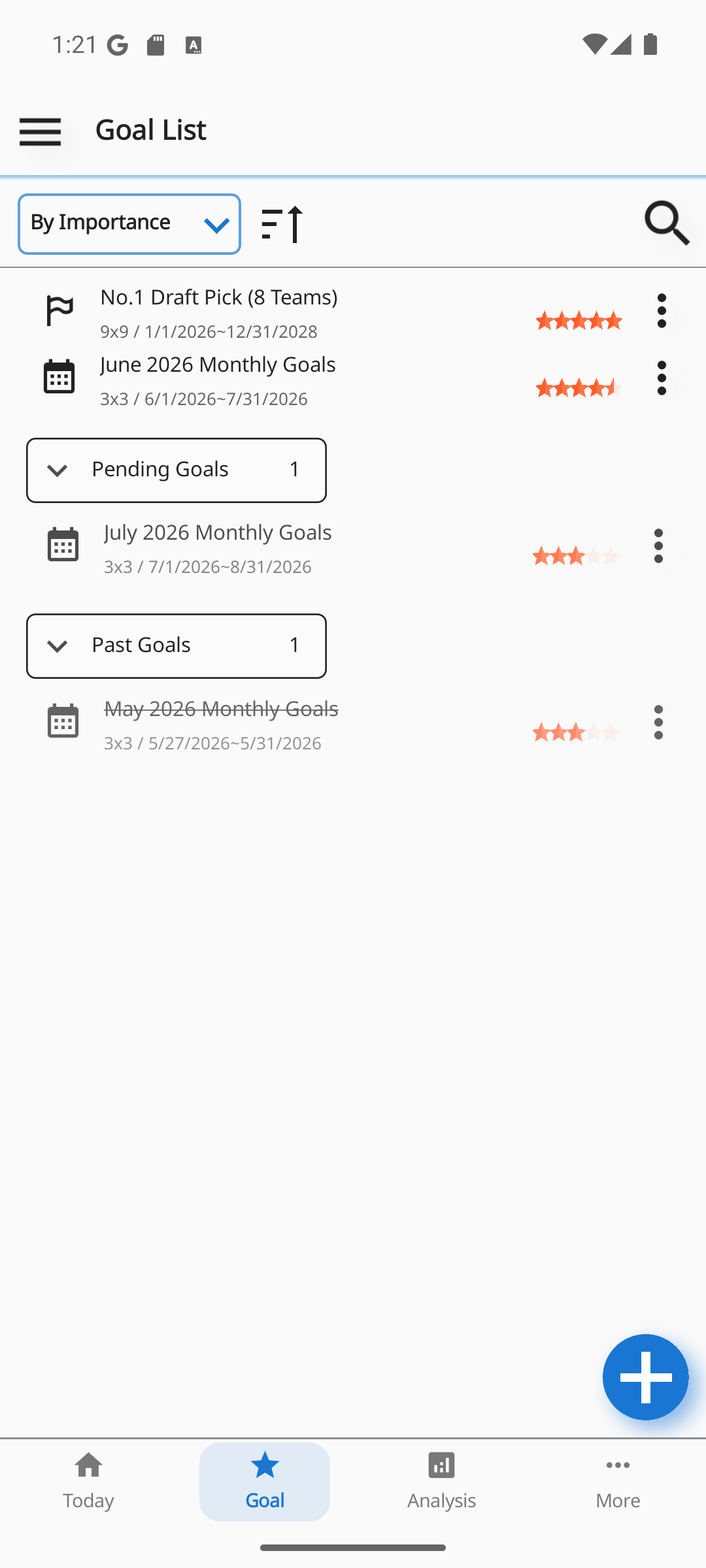
- Active · Upcoming · PastGoals are grouped into active (in progress), upcoming (not started), and past (finished · struck through). Upcoming and past groups can be collapsed.
- Sort · SearchSort by name, priority, start date, or due date, ascending or descending (default = by priority), with magnifier search.
- Row menuFrom a row's menu, jump straight to edit, delete (with a confirmation dialog), or analytics.
- New goalAdd one with the + button. If you have no goals, a "Create your first goal" prompt appears.
Create a goal (3×3 / 9×9)
Set a new goal's title, type, period, and priority.
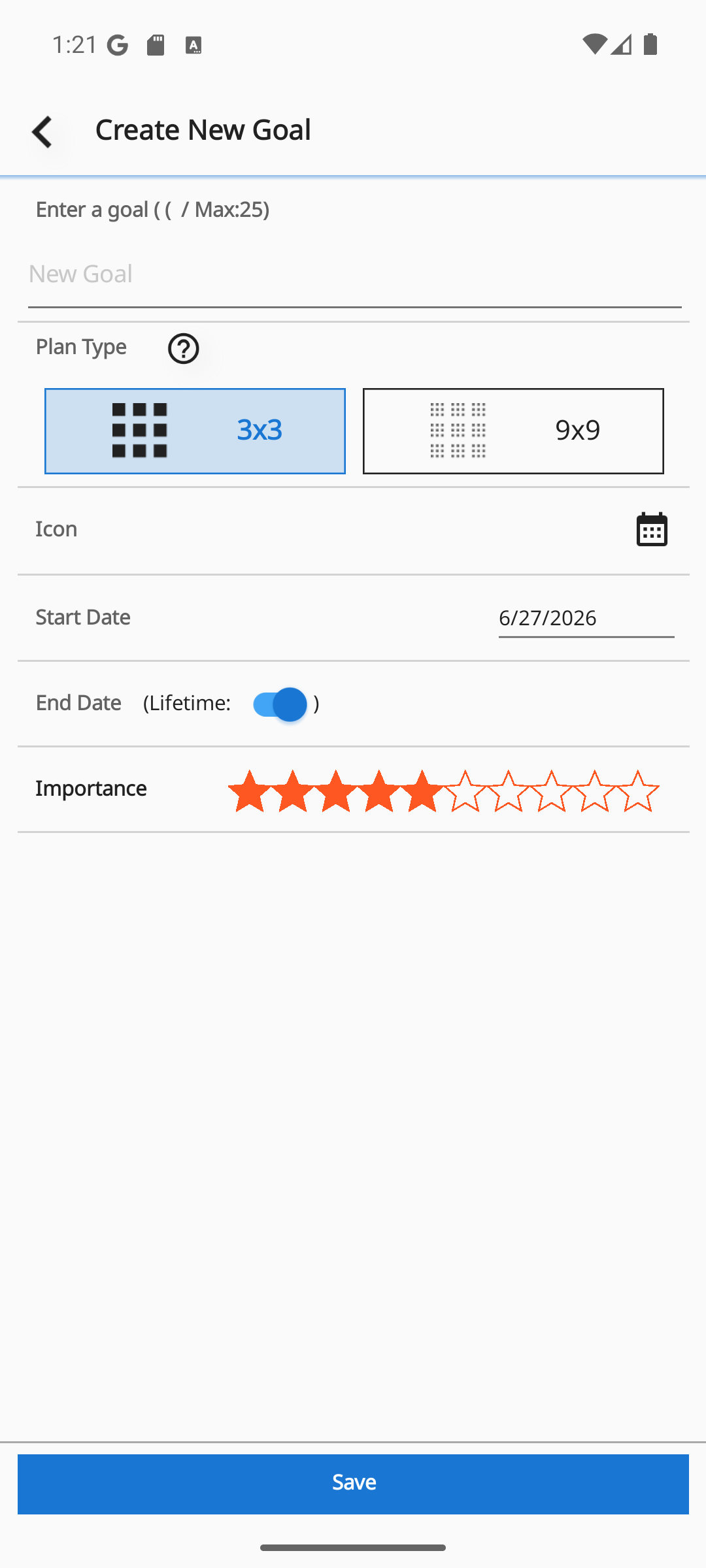
- TitleYou can't reuse the same name as another goal.
- Chart type3×3 (1 core + 8 sub-goals) or 9×9 (each of the 8 sub-goals into 8 actions, 64 total). Tap the help (?) beside it to see the difference.
- Icon · PeriodPick an icon, then set start and end dates, or use the "Lifelong" switch to leave it open-ended.
- Priority (star)Set the priority and save.
start date ≤ end date. You can't change the type on the edit screen, and a delete button appears there too.06·13×3 vs 9×9 — which one?
3×3 Mandalart
The simplest form: 1 core goal in the center and 8 sub-goals around it, for 9 cells in total.
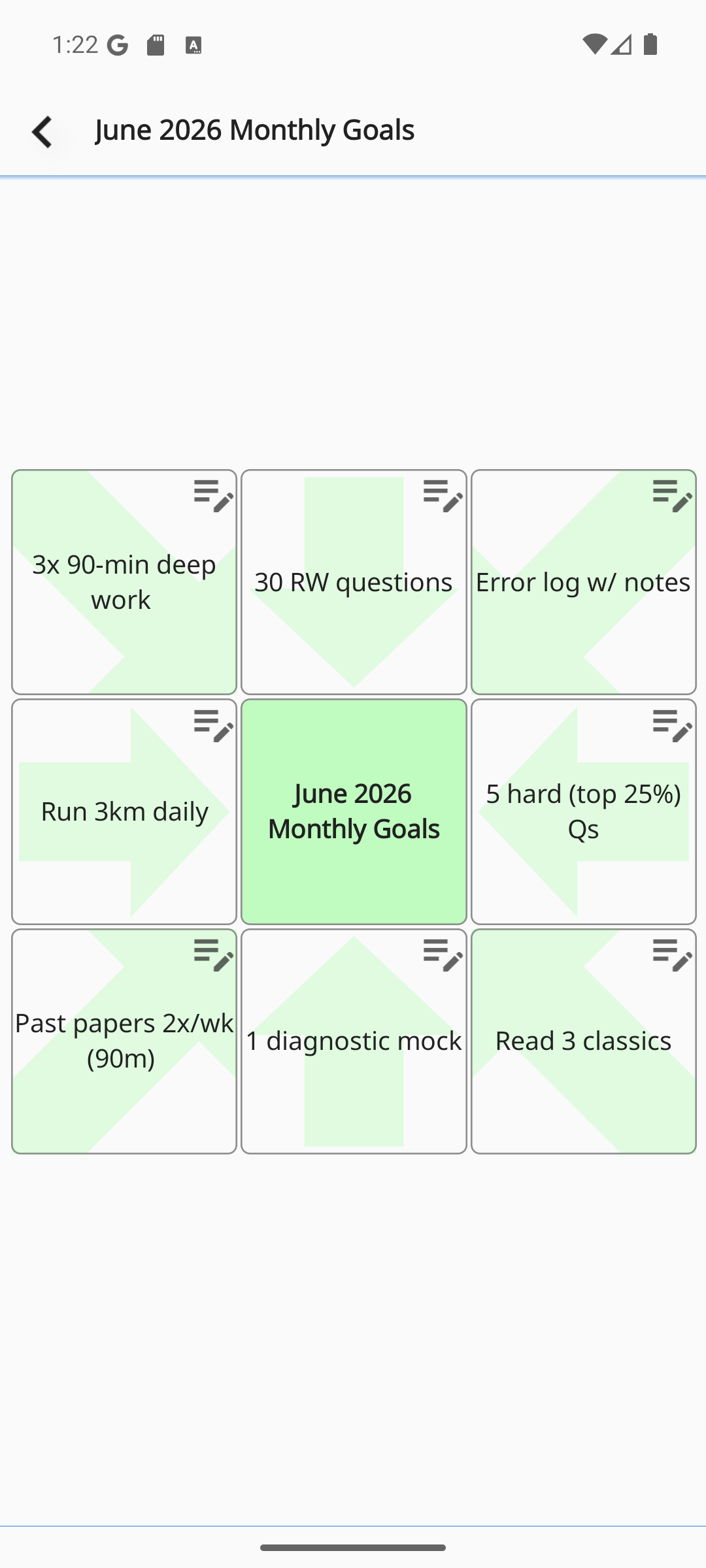
- Center cellYour core goal.
- 8 surrounding cellsSub-goals, or actions you can do right away.
- Edit cellsTap each cell to add its content and tasks.
9×9 Mandalart
The full form: built around a central 3×3 (core + 8 sub-goals), where each of the 8 sub-goals unfolds again into 8 actions.
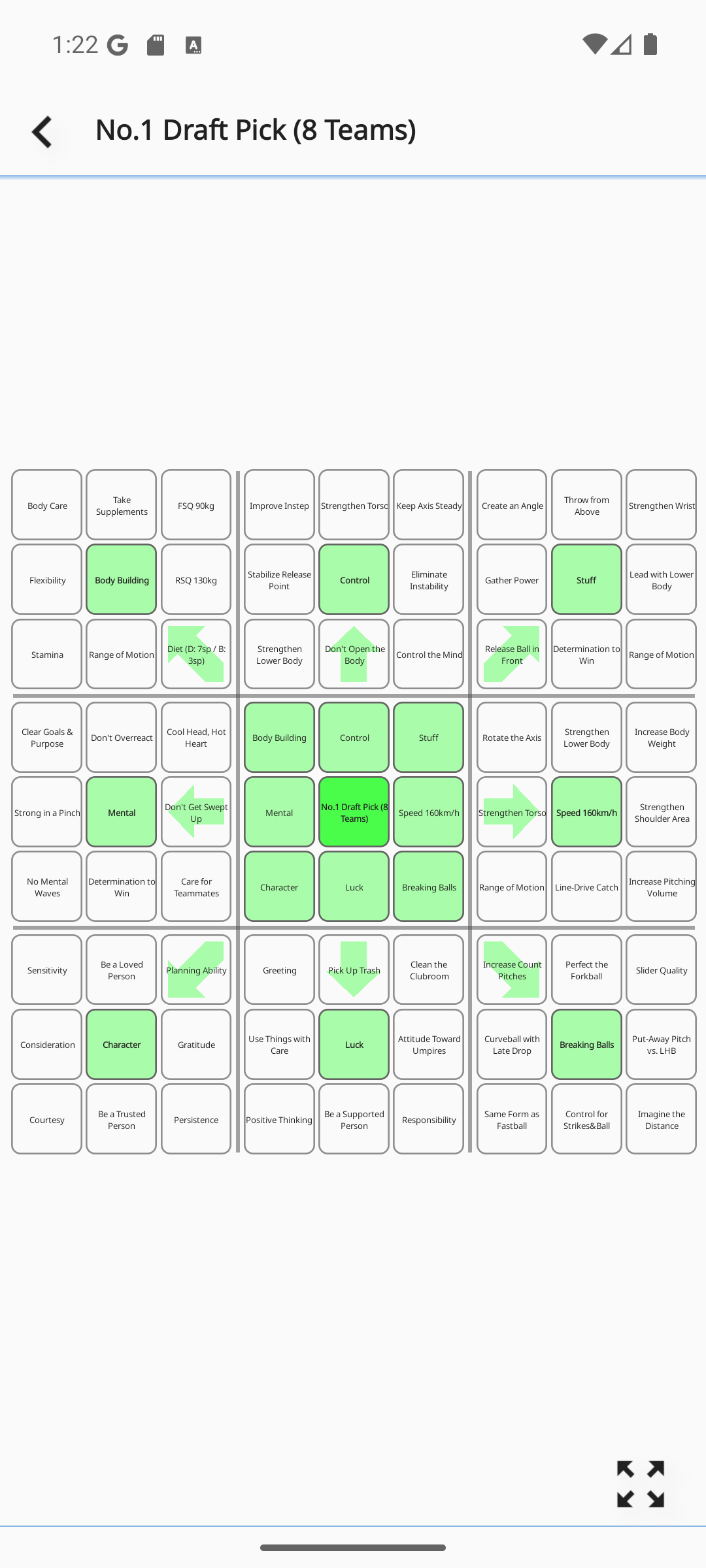
- Center blockCore goal + 8 sub-goals.
- 8 surrounding blocks8 actions for each sub-goal.
- 64 actions totalYour goal unfolds into concrete things to do.
Filling in the Mandalart · Editing cells
The center cell is pre-filled with the goal title. Fill in the rest of the cells to complete your Mandalart.
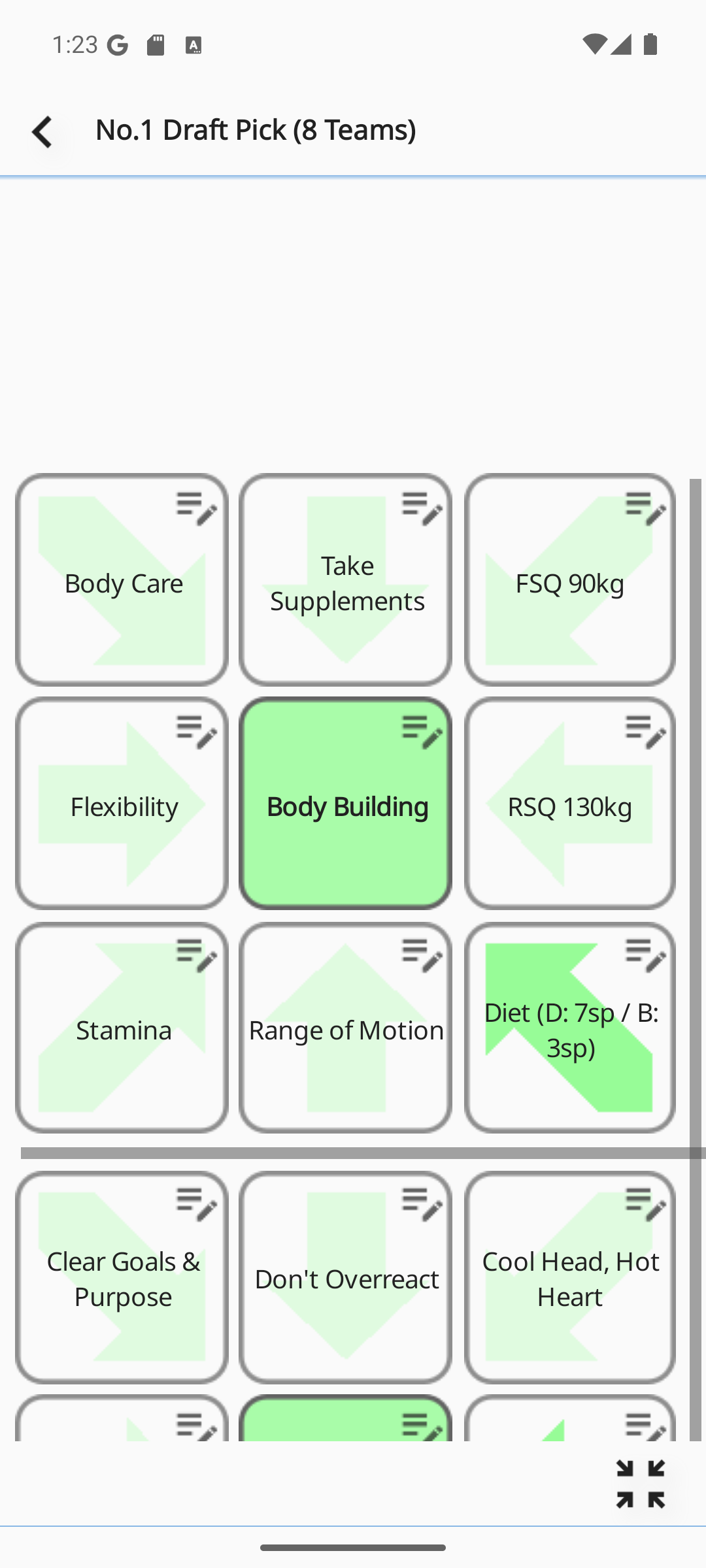
- Tap a cell → edit contentTap a cell to open the edit screen and add its title, tasks, and priority.
- Edit-lock switchTurn it off to make the Mandalart read-only and prevent accidental edits.
- ⋮ MenuLets you toggle the edit lock, edit goal info, and add a widget.
- 9×9 zoomZoom and pan with the zoom in/out buttons.
S_GOAL_CONTENT by cell coordinates (X, Y). While the page is open, if a change from another device syncs in, the Mandalart is redrawn automatically and cell editing is locked during that time.Add a task (daily · weekly · monthly)
On the cell content edit screen, turn on the "Add task" switch and that cell becomes a task, reflected in your today / this week / this month lists and completion rate.
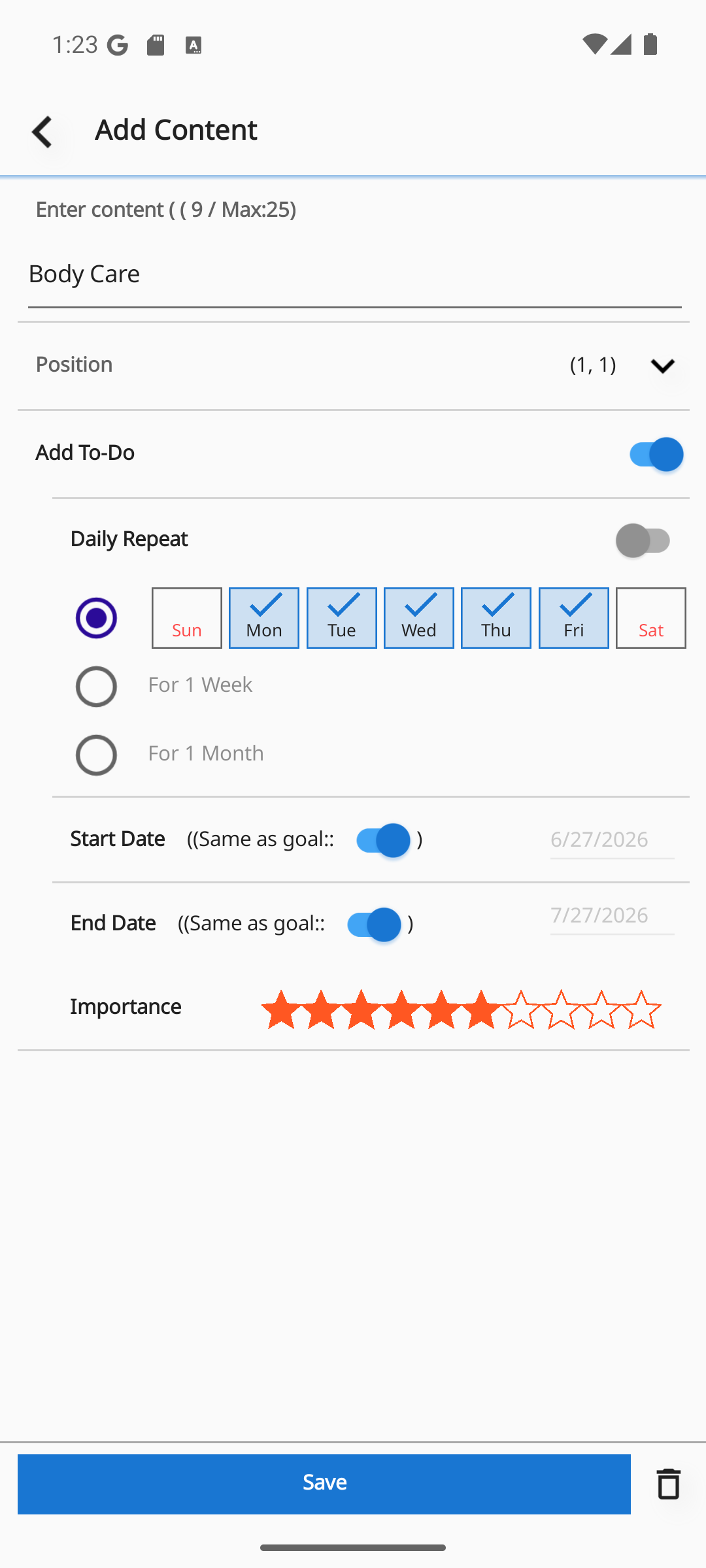
- DailyRepeats every day (the simplest).
- Specific daysCheck only the weekdays you want, Mon–Sun (default = Mon, Tue, Wed, Thu, Fri).
- Weekly / monthlyOnce during that week or that month.
- Period · PrioritySet the start and end dates to "same as goal" or manually (within the goal's period). You can also set the priority (star).
Checking tasks · Completion rate
One tap to complete. Partial completion is recorded as a percentage.
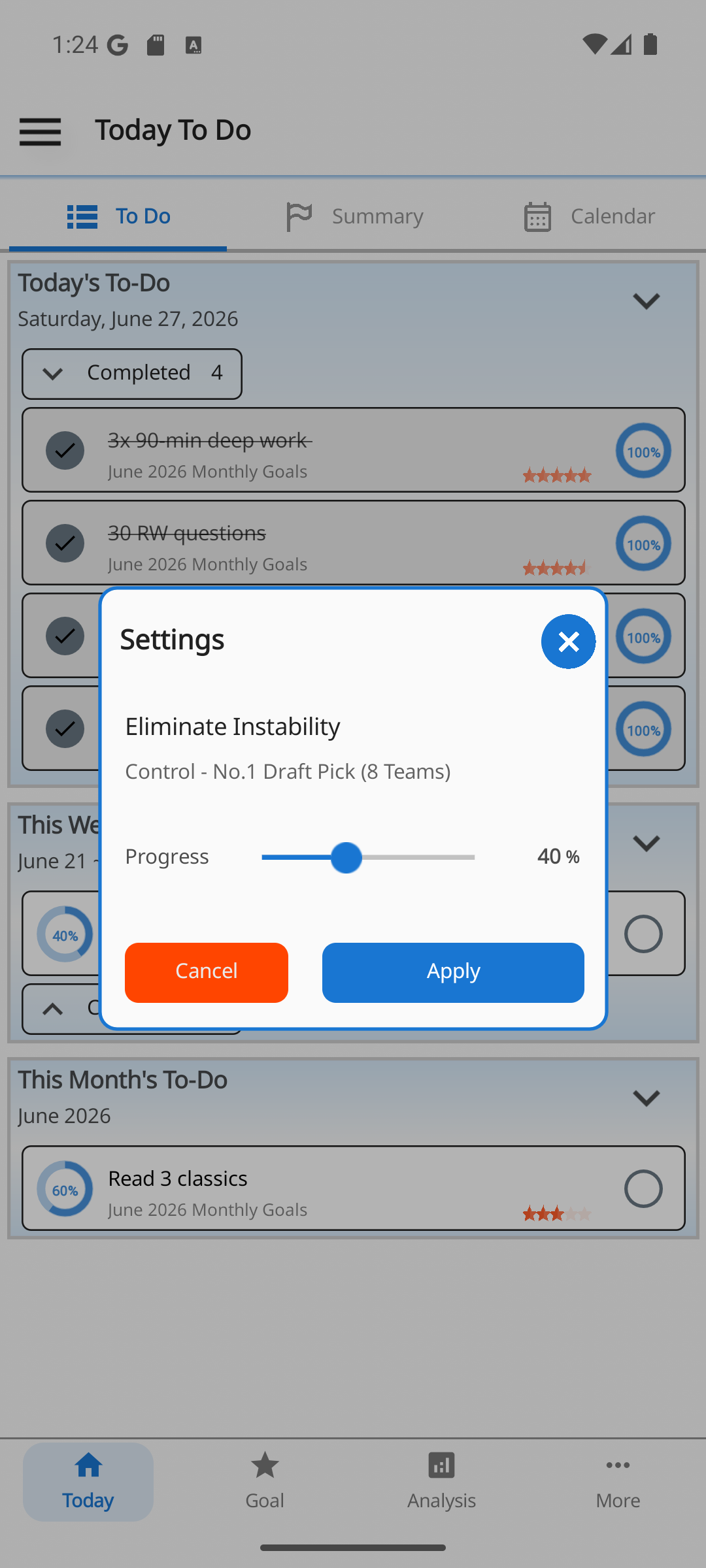
- Tap → completeTap a task to mark it 100% complete and move it to the completed list.
- UndoTap a completed task again to return it to incomplete (0%).
- Partial completion (%)Record partial completion through the percentage input popup.
S_TODO_DONE) and recalculates the completion rate, so the calendar, analytics, and summary update instantly, and task notifications are rescheduled automatically.Priority (stars)
Add a star to important goals and tasks to mark their priority.
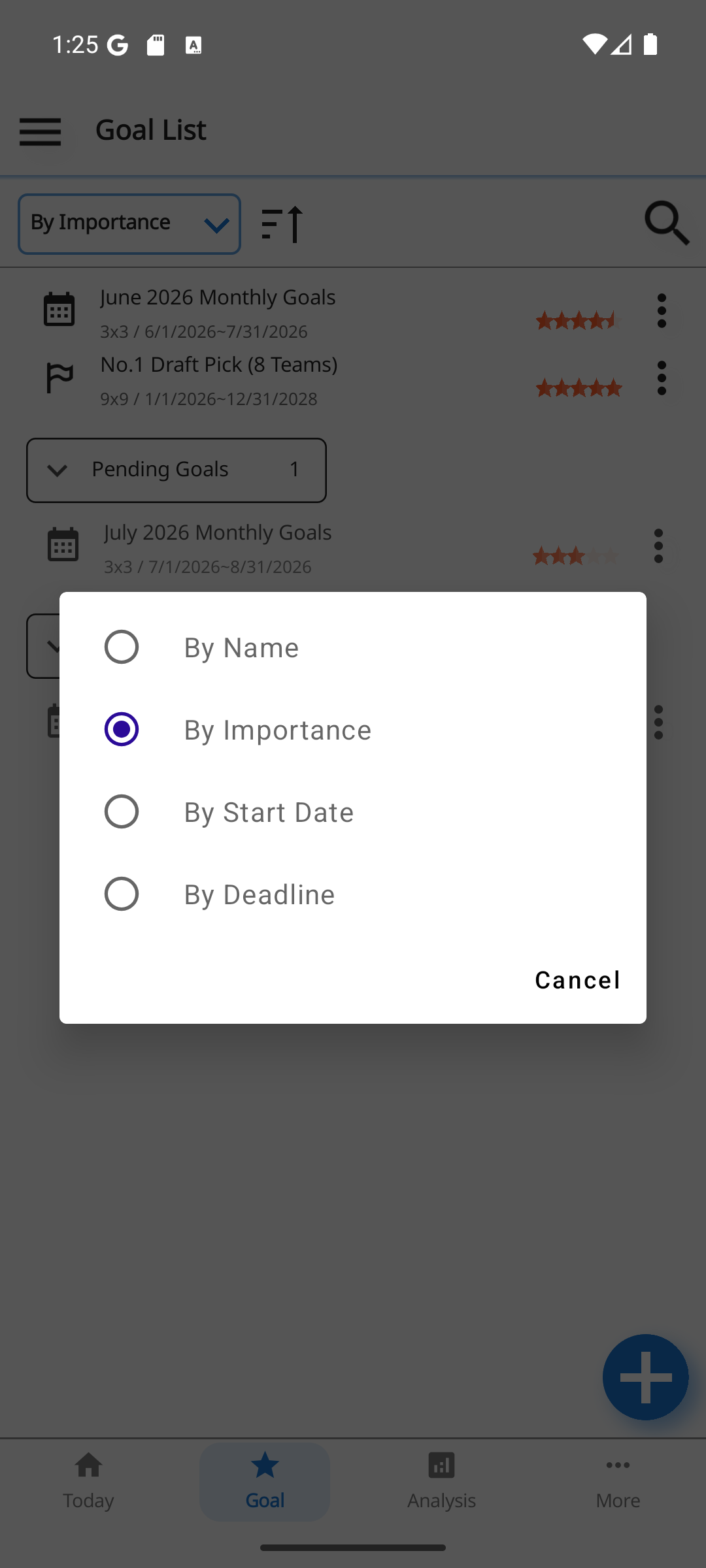
- Sorted firstTask lists are sorted by priority, then by creation order.
- EmphasisImportant items also rise to the top in goal lists, the summary, and analytics.
Analytics — Overall (summary)
Open the Analytics tab and you'll see 4 analytics cards (Overall · Category · By goal · By item) plus an overall status (3×3 and 9×9 goal counts, total completions, average completion rate). Of these, "Overall" is a comprehensive dashboard of 7 widgets.
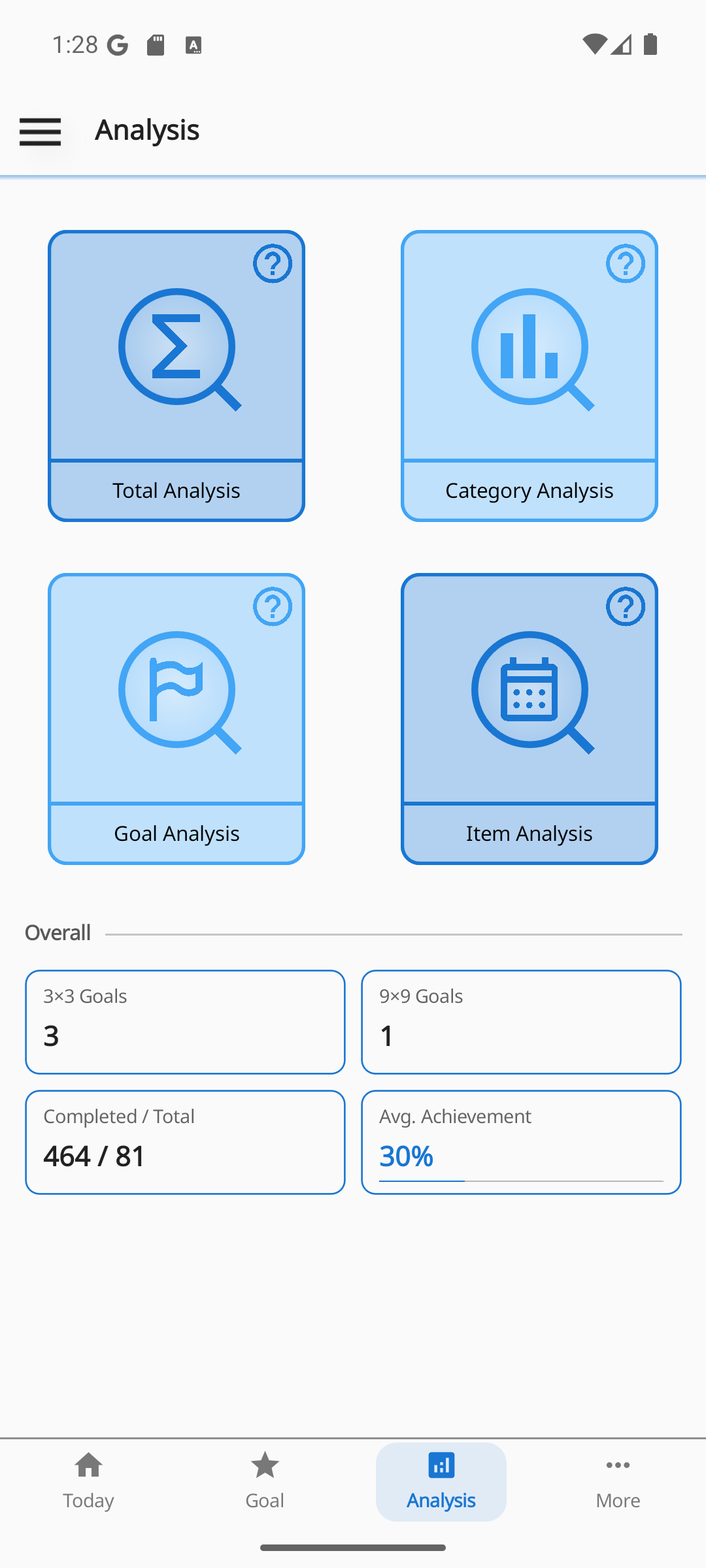
- Overall completion rateThe average across active goals + total goal, completed, in-progress, and upcoming counts + a comment.
- Sections · Top 53×3 / 9×9 progress, and the Top 5 goals by completion rate.
- Weekly activityCompletion counts over the last 7 days (today highlighted) + an up/down/steady trend.
- Streaks · Monthly · Past goalsCurrent and longest streaks, the last 30 days' trend, and the count and average for finished goals.
completed ÷ total, while weekly, monthly, and streak figures tally 100% completion records by date.13·1The 7 widgets of the Overall dashboard
Tap "Overall" and the 7 widgets below unfold top to bottom in order.
Analytics — Category · Goal · Item
Beyond the overall dashboard, there are more focused analytics views.
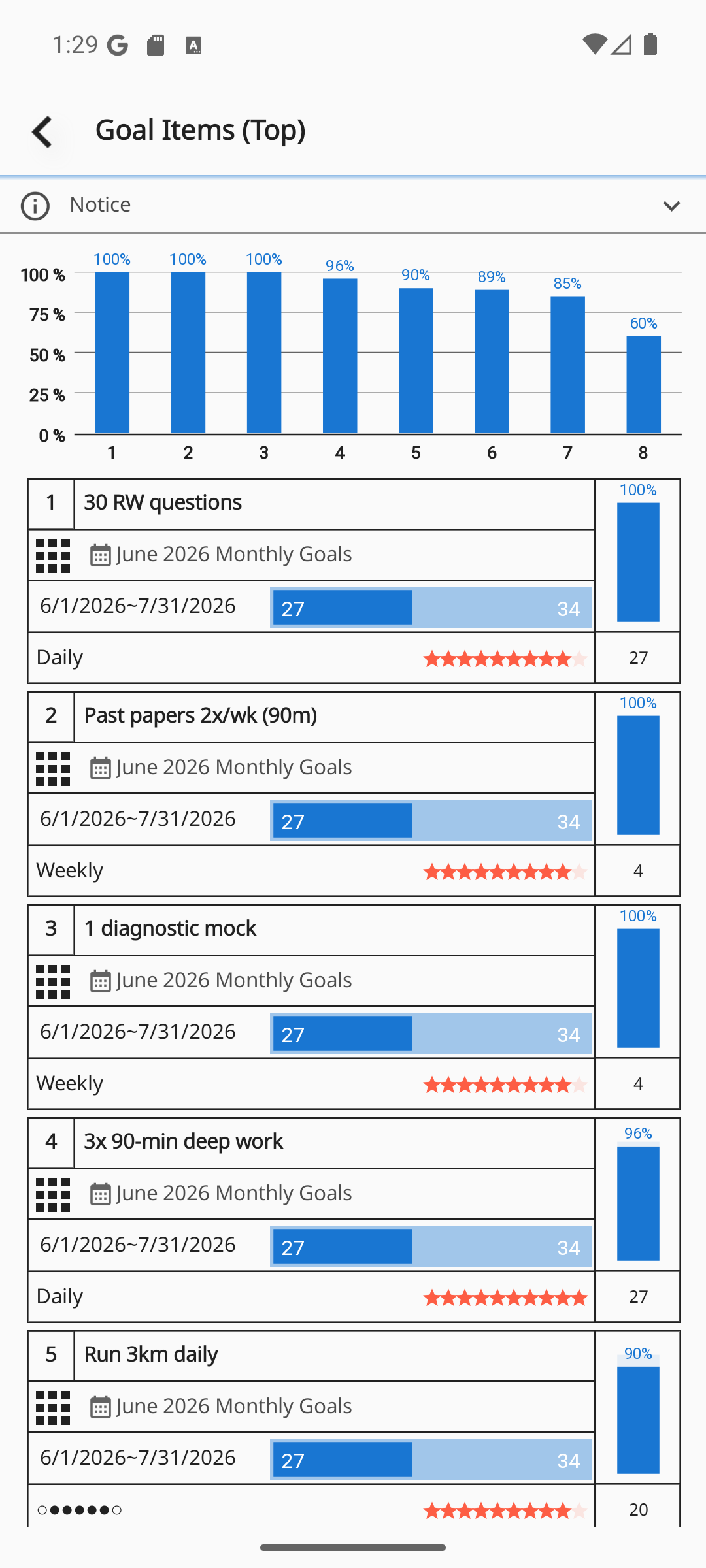
- CategorySplit by 3×3 / 9×9, with daily, weekly, and monthly average completion rates and item counts (the analysis period is shown).
- By goalThe progress and summary of a single goal.
- By item · By sectionA completion-rate ring chart for each task (item), plus the average per 9×9 block (section).
Google Drive sync
Your phone, tablet, and Chrome signed in with the same Google account stay in sync with each other automatically.
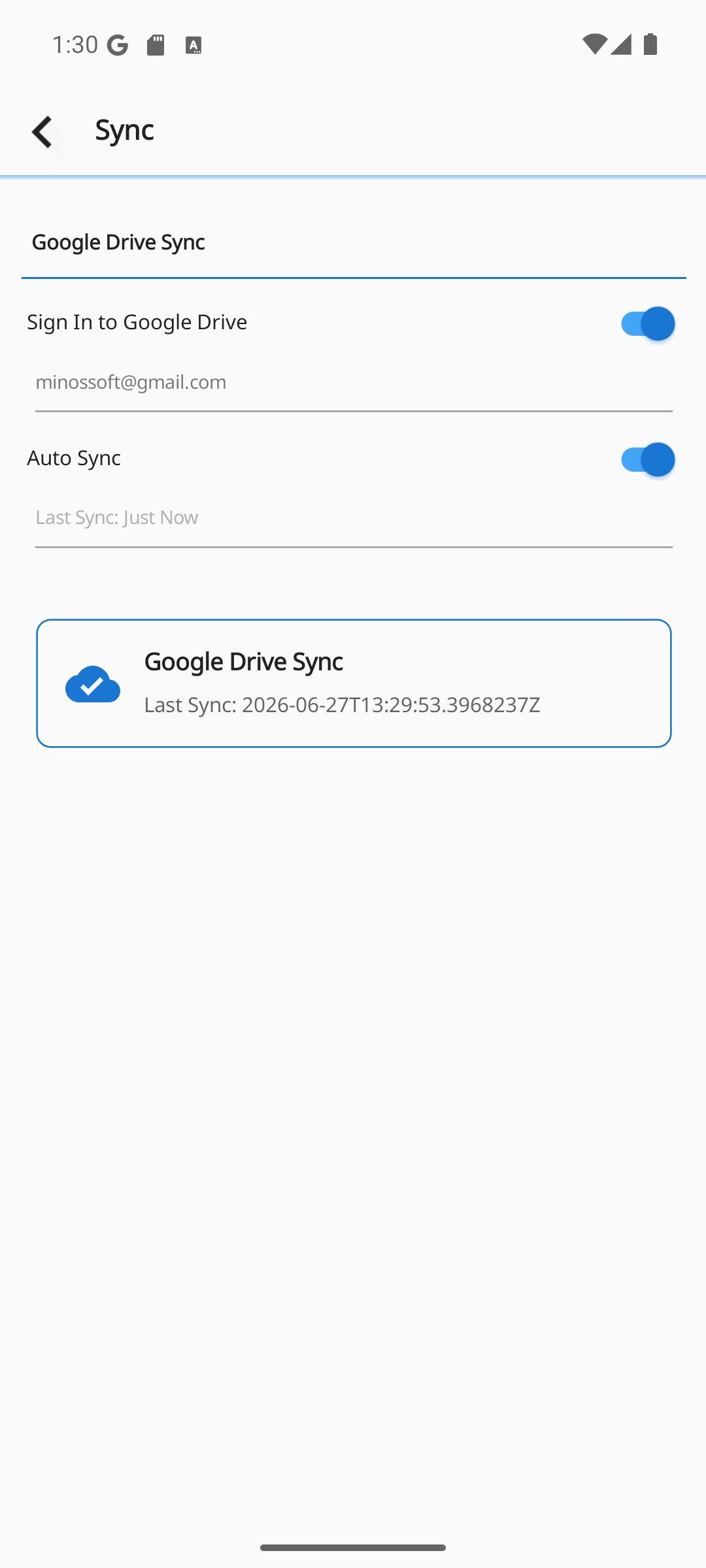
- Open Data managementMore → Data management.
- Sign in to DriveTurn on the "Sign in to Google Drive account" switch and pick an account (your email appears once it's on).
- Auto syncLeave the switch on and your changes are synced for you.
- Status cardCheck whether sync is complete and the time of the last sync.
15·1What gets synced?
Only source data is exchanged, and the calculated results are rebuilt on each device — an approach that reduces conflicts and duplication.
Sync troubleshooting
When sync isn't working, check these in order.
- InternetCheck your connection.
- Drive storageCheck whether your Google Drive is full.
- Sign in againSign out, then sign back in.
- RetryIt retries automatically after a moment — if that fails, restart the app.
Write in Chrome
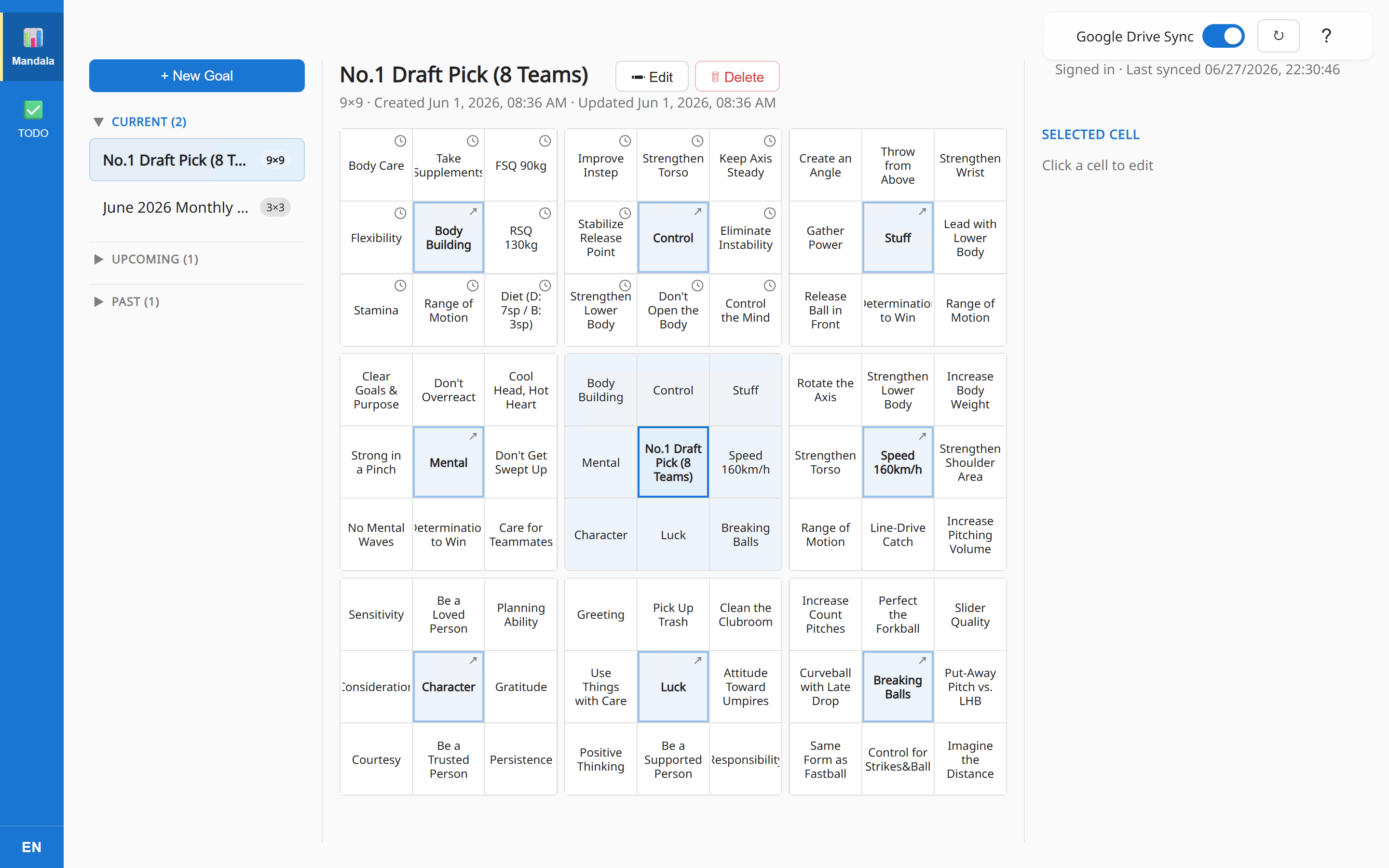
You can use SmartMDT in Chrome too. Build your Mandalart comfortably with a big screen and keyboard, and it syncs with your phone automatically. It's especially handy when entering all 64 cells on a phone feels tedious.
17·1What is it?
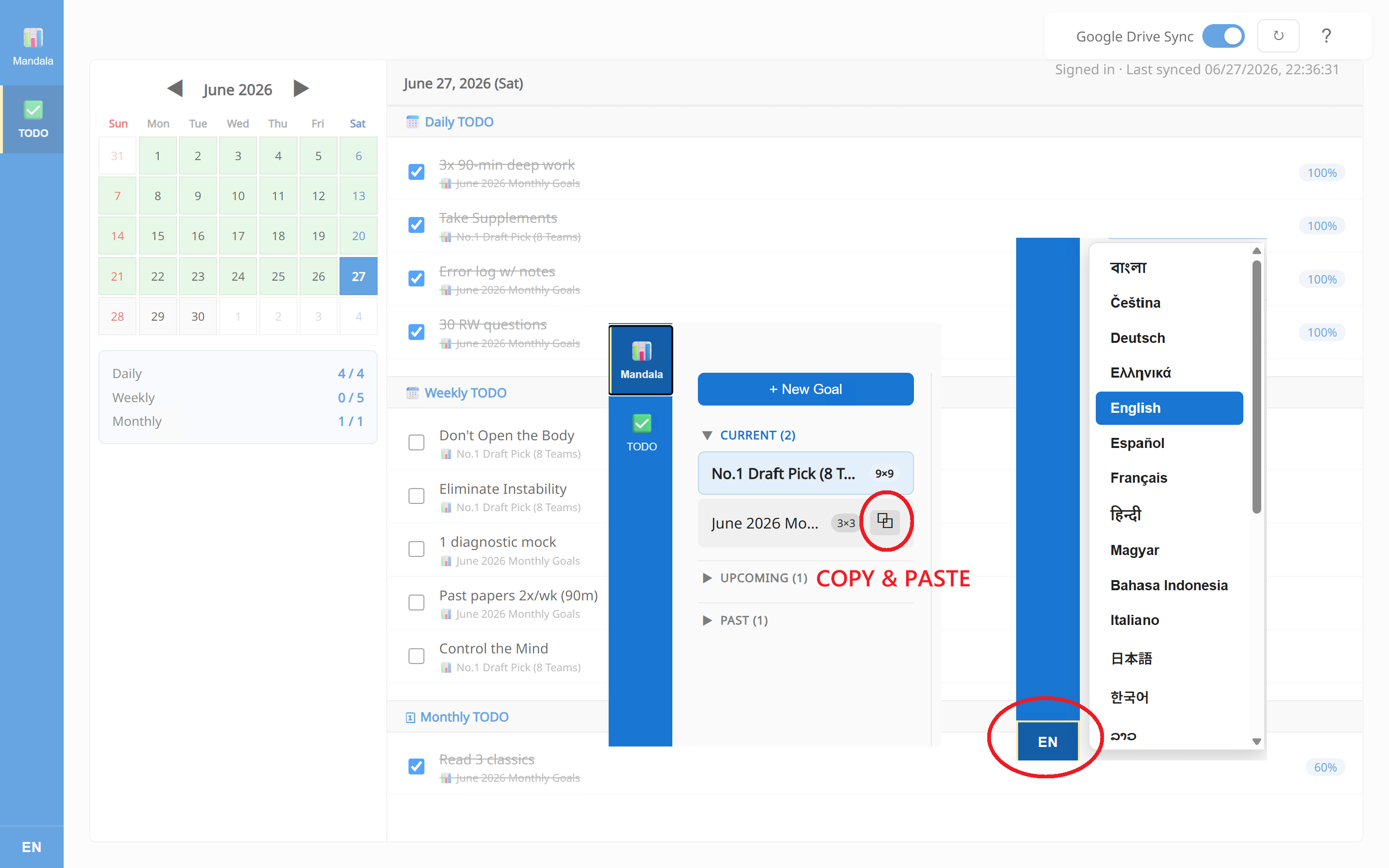
Click the "Open SmartMDT" icon in the toolbar and the full SmartMDT (Mandalart + tasks) opens in a new tab on a big screen inside Chrome. Use the left sidebar to switch between Mandala ↔ TODO and pick from 26 languages.
17·2Install · Sign in
After installing, you only need to connect once.
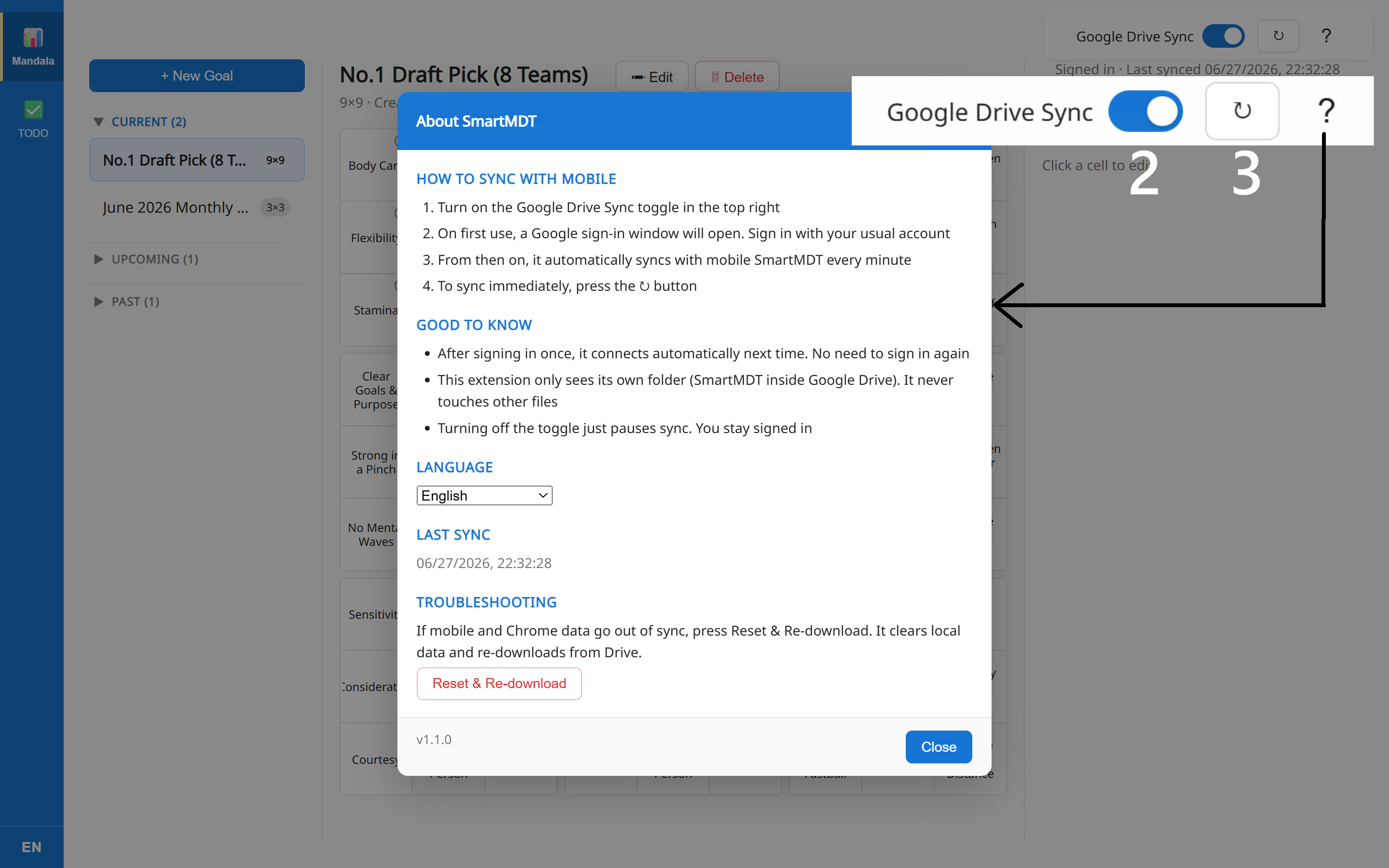
- Turn on syncFlip the "Google Drive sync" toggle at the top right.
- Sign in to Google (once)Sign in with the account you normally use, and it stays connected automatically from then on.
- Auto syncAfter that, it syncs with your phone automatically about every minute. You can also sync instantly with the ↻ button.
17·3★ Comfortable writing on PC
The screen spreads out into three columns: goal list on the left · Mandala chart in the center · cell input panel on the right.
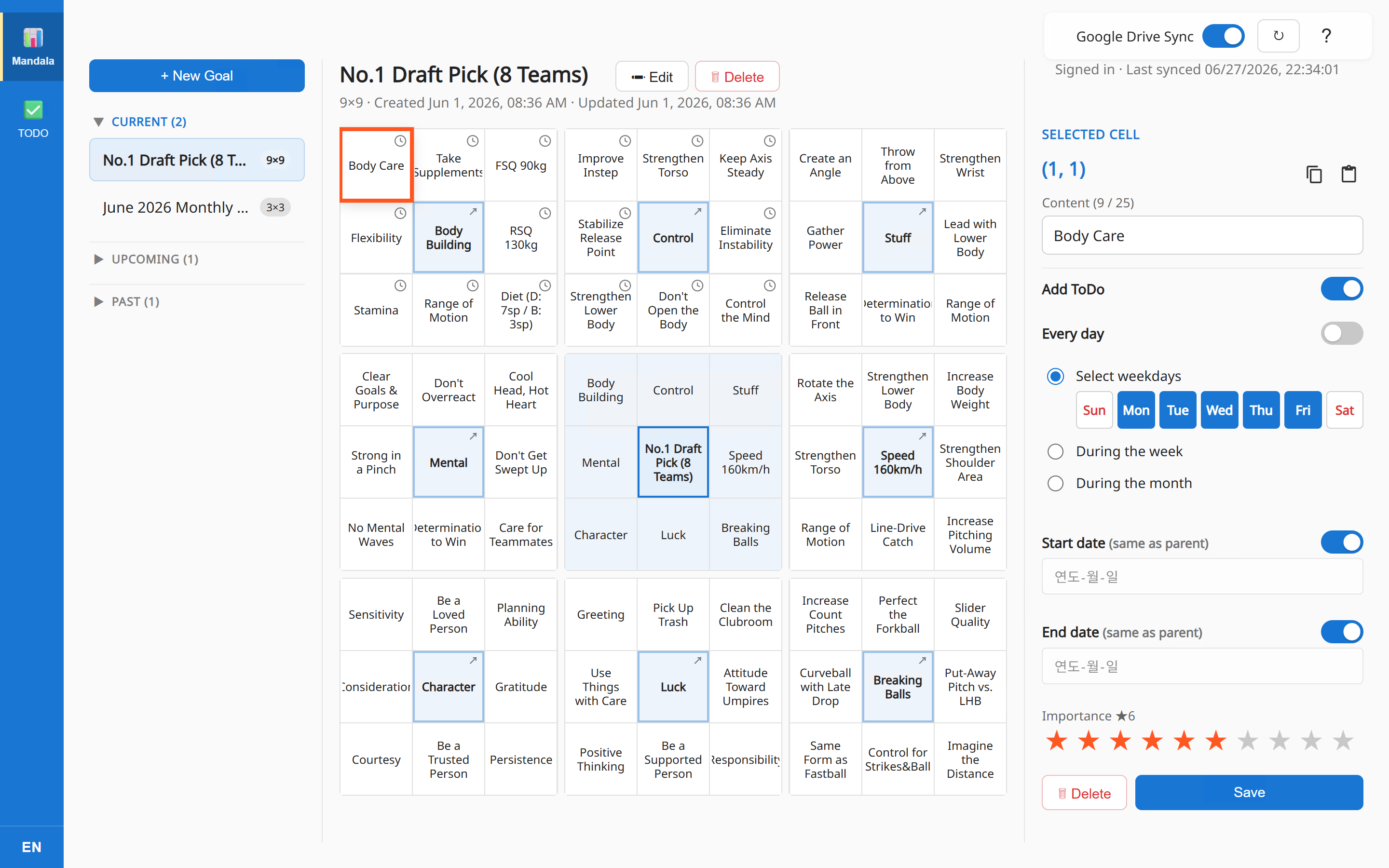
- Click a cell → type right awayClick a cell in the center chart and quickly type the name, task, and priority with your keyboard in the right panel.
- Copy / paste cellsCopy a similar cell (button or right-click) and paste it into another cell to fill in fast. You can even move it to another goal or PC.
- 64 cells made easyFinish the 9×9 (64 cells) that's tedious on a phone in one go, with a big screen and keyboard.
17·4Features
17·5A great way to use it
- Design in ChromeWrite and clone Mandalarts in bulk on the big screen.
- Act on your phoneLightly check off your daily tasks on the phone.
- Automatically as oneDrive keeps both sides in sync about every minute. If they don't match, press "Re-download from scratch" in the Chrome guide.
Themes · Custom themes
Choose from the built-in themes, or set the colors yourself to create your own.
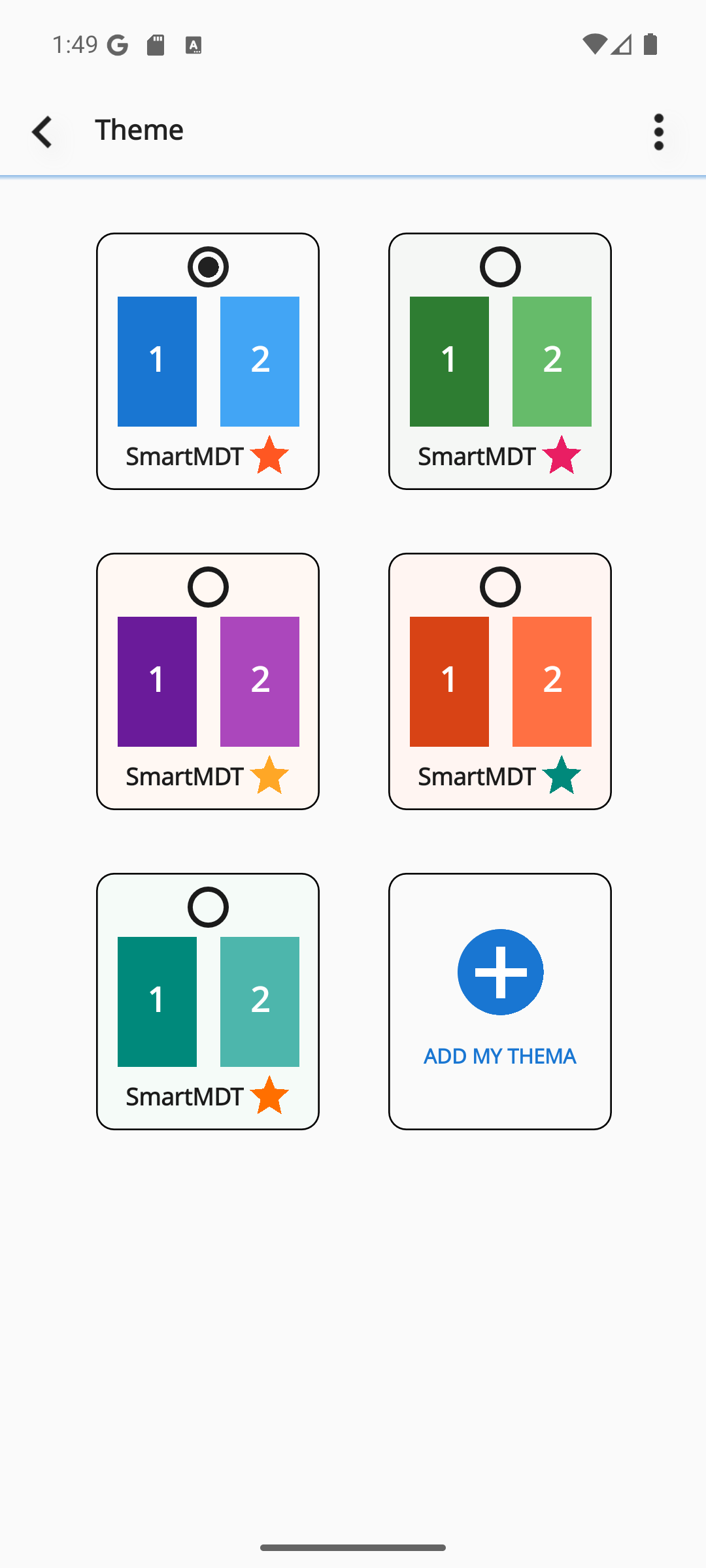
- Set 7 colorsUse the color picker to set the background, text, primary / primary text, secondary / secondary text, and accent (calendar stars, etc.) colors.
- Copy from a themeUse an existing theme as a starting point and change only part of it.
- Save · ApplySaving adds it to the list, and if it was the current theme, it applies immediately.
Settings
Adjust app behavior, such as notifications and whether help hints are shown.
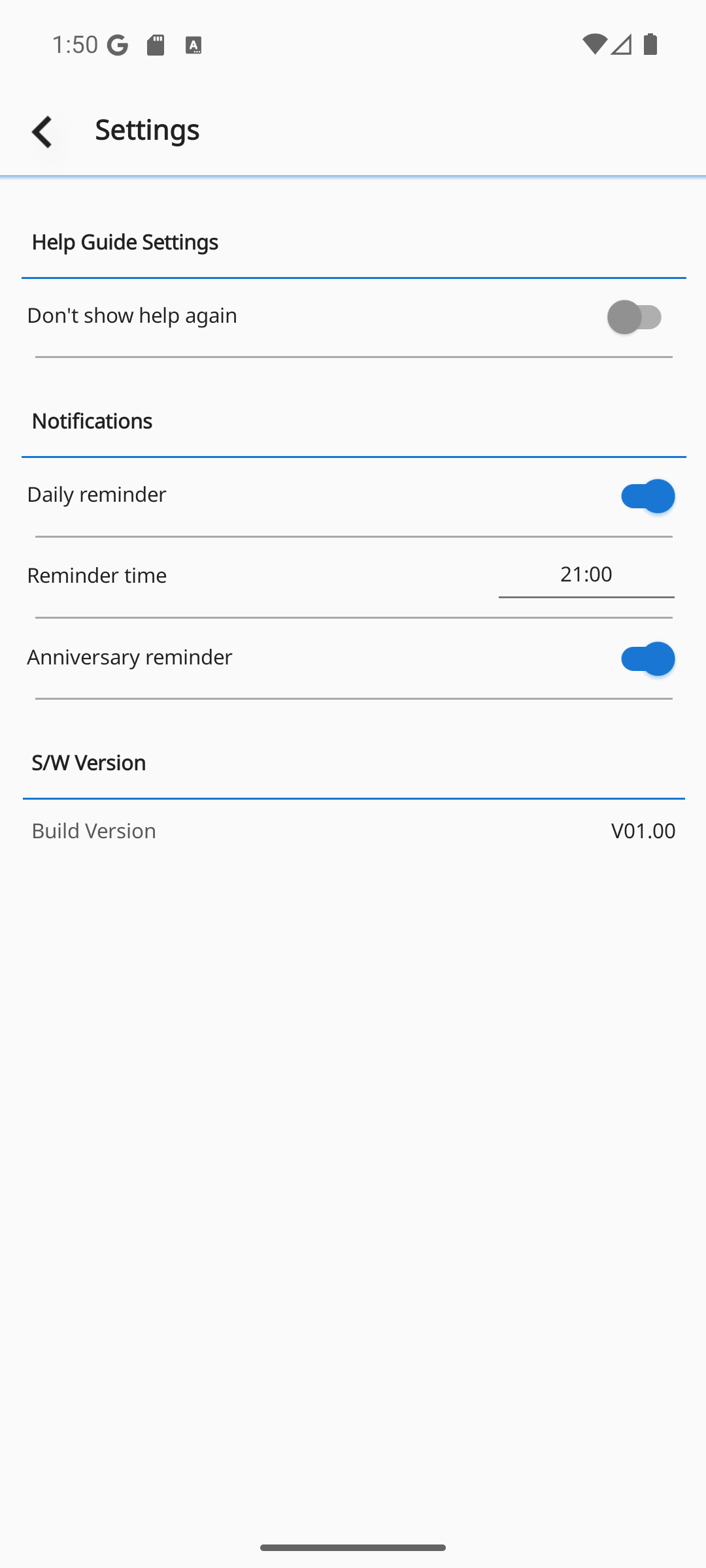
- Task notificationsOn / off.
- Notification timeChoose between 12:00 and 23:00 (default 21:00). Shared by tasks and anniversaries.
- Anniversary notificationsOn / off.
- Help hintsWhether on-screen hints (the "Good to know" notes on analytics, etc.) are shown.
Change language (26)
26 languages are supported. Tap a language in the list and it applies instantly, changing all text across the app.
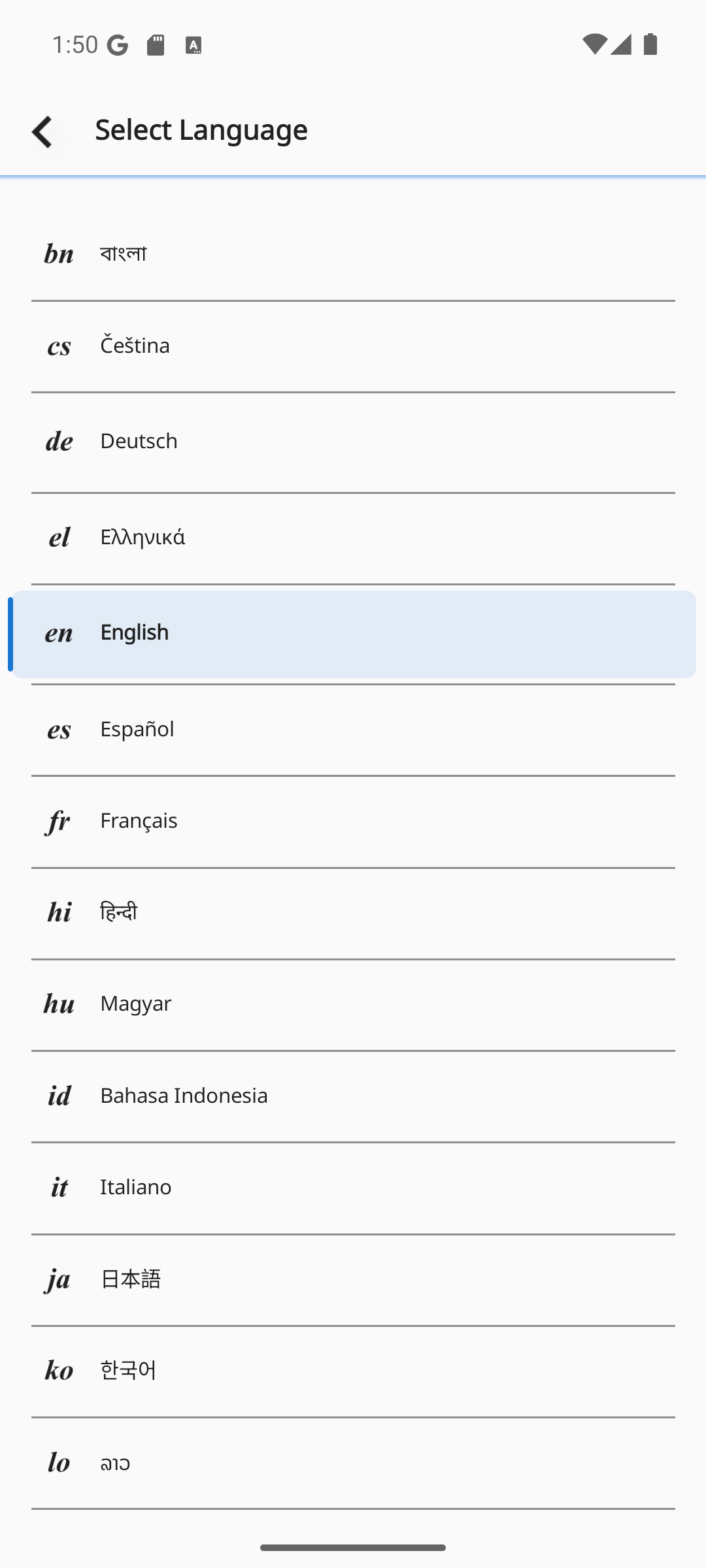
- Instant applyThe moment you tap, all on-screen text changes.
- Auto-selectedThe default language is English, and on first launch it's auto-selected to match your device language.
Personal info · Life timeline
Enter your name, date of birth, and target lifespan to see days lived, days remaining, and upcoming anniversaries.
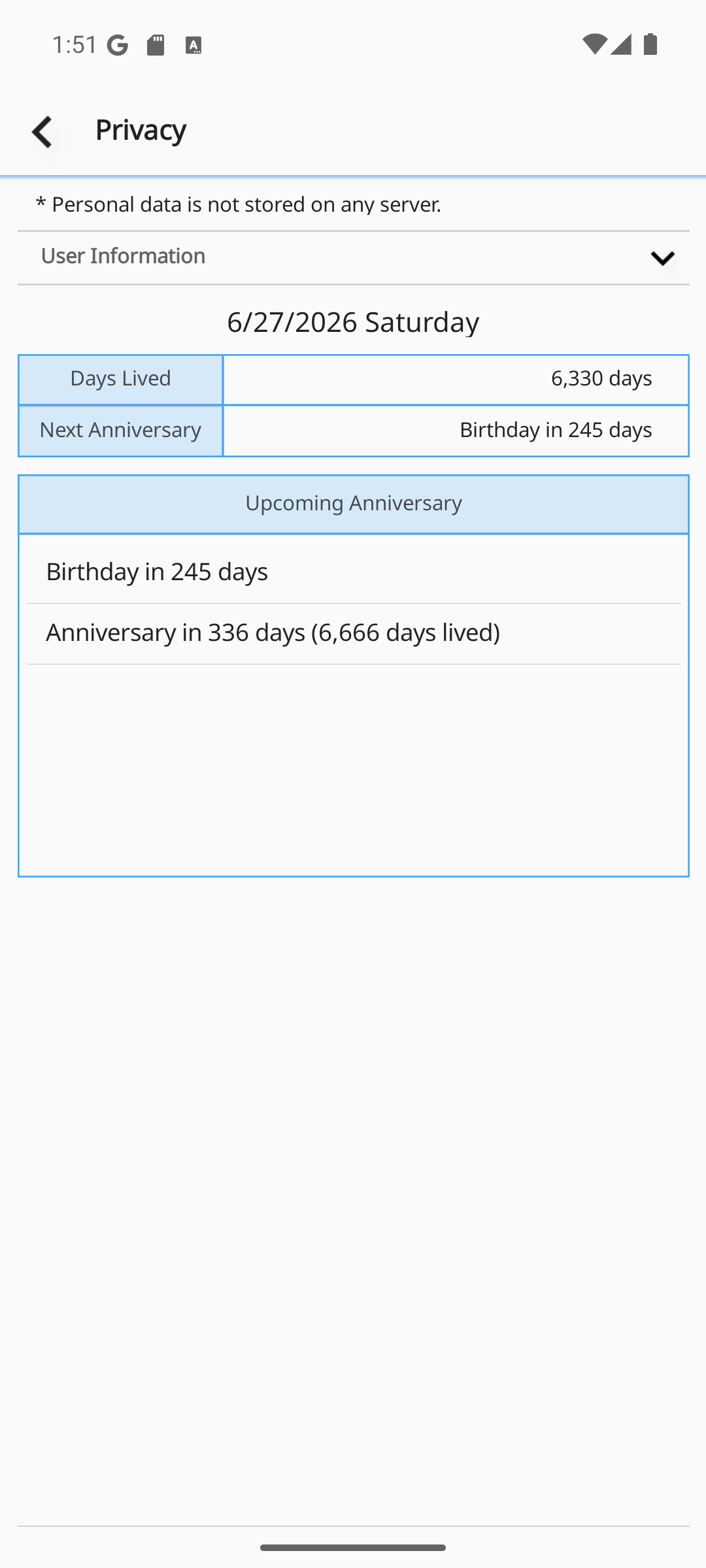
- NameAt least 2 characters.
- Date of birthYear (1800–this year) · month · day. Future dates aren't allowed.
- Target lifespanEnter as an age (slider 70–120). Your birthday + lifespan must be later than today.
Home widget (Android)
Place your Mandalart on the home screen as a widget so you naturally face your goal every day.
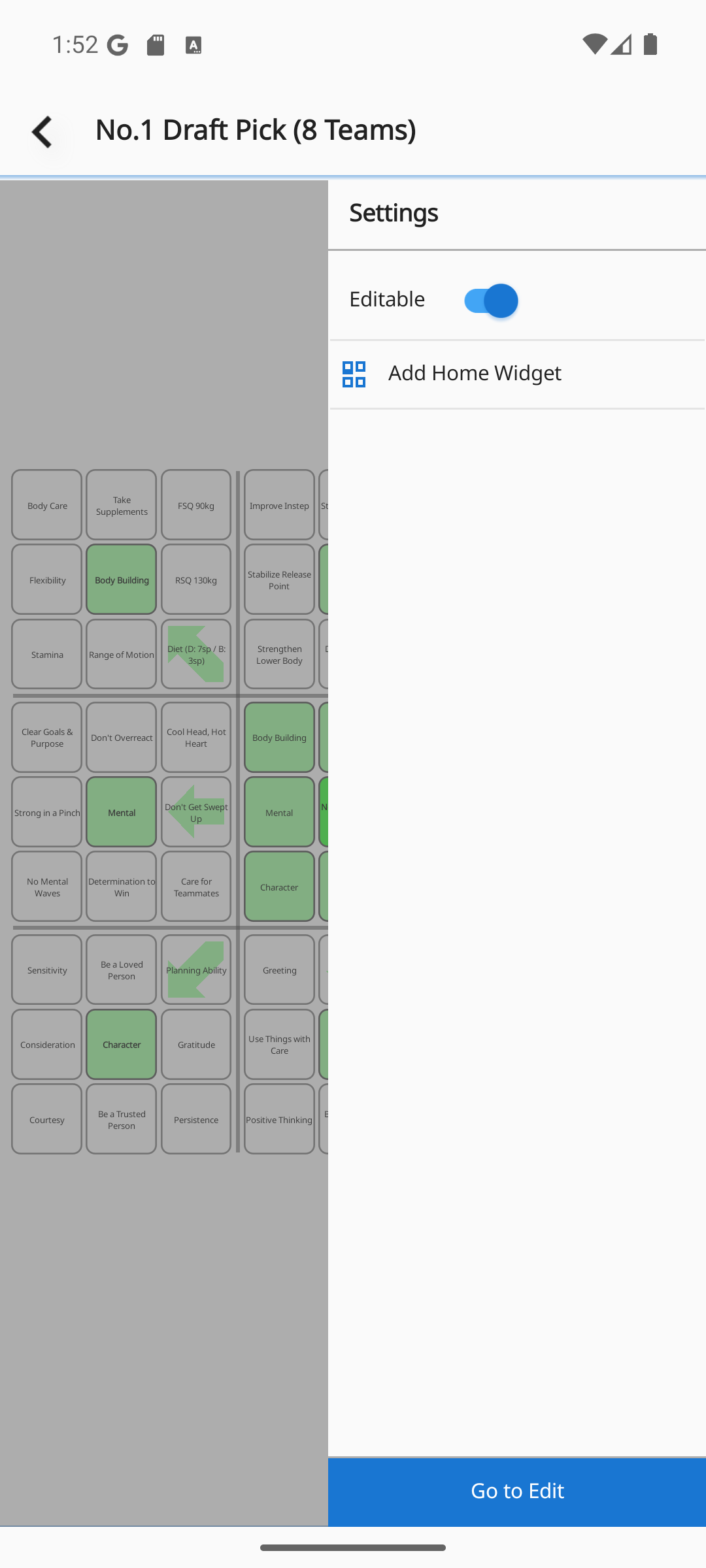
- Open the Mandalart screenOpen the Mandalart screen of the goal you want as a widget.
- ⋮ Menu → Add widgetThe widget is added to your home screen (a system add dialog may appear).
- UpdateWhen the content changes, the same menu becomes "Update widget" to refresh it to the latest look.
Frequently asked questions
3×3 or 9×9 — which should I start with?
If you're new, start light with 3×3, then break things down further with 9×9 once you're comfortable.
Where is my data stored?
On your device and (when signed in) in your Google Drive. Nothing is kept on an external server.
Will I lose my data if I switch devices?
If Drive sync is on, your data is restored when you sign in with the same account on the new device.
How is the completion rate calculated?
It's how much you completed that day divided by the day's total task count. Partial completion (%) counts too.
No star is showing on the calendar.
A star appears when that day's completion rate is 80% or higher. Right after a sync, it updates shortly.
What I checked in Chrome isn't showing on my phone.
Make sure both are signed in with the same Google account and connected to the internet. They sync automatically after a moment.
Does it cost anything?
The core features are free. Some screens may show ads.
I'm not getting notifications.
In Settings, turn on "Task notifications" and make sure your device's notification permission is allowed. Also check the notification time (12:00–23:00).
Does the widget work on iPhone?
The home screen widget is currently supported on Android.
Your data is yours
All of SmartMDT's data is stored only on your device and, when signed in, in your Google Drive. Nothing is kept on a separate server, and sync securely exchanges only your source data.
Have more questions?
minossoft.com